Zo gebruik je de MyToyota-app en functies
Instructievideo's
In onze instructievideo's leggen we je stap voor stap en zonder ingewikkeld vakjargon uit de multimedia systemen en Connected Services van Toyota werken. Een slimme en gemakkelijke manier om snel alles wat je wil weten te vinden.

MyToyota app – Onboarding
-
-
Volledige onboarding van de app en multimedia
-
MyToyota-app – je profiel koppelen
-
Toyota – je app koppelen via Link Key
-
Urban Cruiser - Onboarding
Smart Digital Key
-
Digitale sleutel - Eigenaar
-
Digitale sleutel - Uitgenodigde bestuurders
-
Digitale sleutel – tips & tricks
Toyota Oplaadservice
-
Hoe werkt de Toyota Oplaadservice
-
Hoe laad ik mijn elektrische auto op?
Remote Services
-
Toyota - eCare
-
Toyota - Vind mijn auto
-
Toyota - Hybride Coaching
-
Toyota - Remote Charging
-
Toyota - Remote Climate deel 1
-
Toyota - Remote Climate deel 2
-
Toyota - Remote Lock
Toyota SmartConnect
-
Toyota Smart Connect - Cloudnavigatie met EV-routebepaling
Betaald abonnement
-
Betaald abonnement

Handleidingen
Onze overzichtelijke How-to gidsen zijn ontwikkeld door experts en leggen je stap voor stap op eenvoudige wijze uit hoe je bijvoorbeeld een nieuw apparaat koppelt, of verbinding maakt met de MyToyota app.
Handleidingen
- Alles
- Connected Services
- App
- Multimedia

Veelgestelde vragen
In onze Veelgestelde Vragen vind je alle informatie over de Connected Services voor je auto. Hier vind je antwoorden op al je vragen over zaken zoals instellingen en upgrades.
Veelgestelde vragen over Connected Services
- Alles
- Over de app
- Account
- Connected Verzekering
- Diefstalassistent – ToyotaConnect
- Rijrecorder – ToyotaConnect
- Rijanalyses, Hybrid- of EV-coaching
- Intelligente spraakassistent – ToyotaConnect
- Multimedia-gebruikersprofiel
- Muziekstreaming – ToyotaConnect
- Aanbiedingen & Smart Stops
- OTA-updates (Over-the-Air) – ToyotaConnect
- Proace
- Remote immobiliser – ToyotaConnect
- Services
- Services - Multimedia
- Smart Digital Key
- Smart Digital Key+ - ToyotaConnect
- Slimme navigatie – ToyotaConnect
- Technisch probleem
- Toyota Smart Connect Multimedia
- ToyotaConnect
- Spraakassistent – ToyotaConnect
- (De)activeren
- Abonnementsvormen
- Data Act – Algemene informatie
- Data Act – Voor klanten en eigenaren van thuisladers voor voertuigen
- Data Act – Voor derden (reparateurs, verzekeraars, app-ontwikkelaars, wagenparkbeheerders)
- Data Act – Technische en juridische aspecten
- Veiligheid en privacy
Connected Services zijn een pakket slimme functies die je auto verbinden met je digitale leven. Ze maken autorijden gemakkelijker, veiliger en aangenamer – zowel wanneer je onderweg bent als wanneer je niet in de auto zit.
Deze services zijn gebaseerd op twee belangrijke onderdelen:
Mobiele app (MyToyota / Lexus Link+)
De mobiele app fungeert als je afstandsbediening en digitale cockpit:
Toegang op afstand: Start of stop de motor, vergrendel of ontgrendel de portieren en bedien op afstand de klimaatregeling, portieren en alarmlichten
Voertuiglokalisatie: Vind eenvoudig waar je auto geparkeerd staat
Routeplanning: Plan routes en stuur deze direct naar het navigatiesysteem van je auto
Onderhoud & voertuigstatus: Ontvang meldingen wanneer onderhoud nodig is en bekijk rapporten over de voertuigconditie
Rijgegevens: Inzicht in brandstofniveau, kilometerstand en ritgeschiedenis
Meldingen: Blijf op de hoogte met realtime updates over je voertuig
Multimediasysteem
Het multimediasysteem in de auto verbindt je smartphone en verrijkt je rijervaring:
Smartphone-integratie: Gebruik apps zoals Spotify, WhatsApp, Audible, Google Maps en Waze direct via het display van je auto
Spraakbediening: Bedien apps en navigatie via Siri of Google Assistant
Navigatie & waarschuwingen: Ontvang realtime verkeersinformatie, flitsmeldingen en zoek eenvoudig naar interessante locaties
Let op: beschikbare functies kunnen verschillen per model en per markt.
Je kunt Connected Services op elk moment gebruiken via de MyToyota-app. Er zijn echter een aantal belangrijke voorwaarden die van invloed zijn op het moment waarop services en gegevens beschikbaar zijn.
Wanneer Connected Services het beste werken
Beschikbaarheid van gegevens
Autogegevens worden naar de app verzonden zodra de motor is uitgeschakeld. De details van je laatste rit zijn kort na het uitzetten van de motor zichtbaar in de app.Mobiele dataverbinding vereist
Voor het verzenden van gegevens is een stabiele mobiele netwerkverbinding nodig. Wanneer je bijvoorbeeld ondergronds parkeert of je in een gebied met slechte dekking bevindt, kan het synchroniseren van gegevens worden vertraagd.
Veelvoorkomende redenen waarom services niet (goed) werken of gegevens ontbreken
Connected Services zijn niet geactiveerd
Controleer of Standard Services zijn ingeschakeld in het Connected Services Centre.Multimediasysteemprofiel niet gekoppeld
Zorg ervoor dat je gebruikersprofiel in het multimediasysteem is gekoppeld aan je MyToyota-account.Privacymodus is ingeschakeld
Als het delen van locatiegegevens is uitgeschakeld, worden ritgegevens niet opgeslagen. Controleer en activeer het delen van locatiegegevens in de sectie Privacymodus onder MyGarage.
Raadpleeg voor meer informatie de FAQ’s over Privacymodus in de app.
Privacymodus is de instelling waarbij de locatie van de auto niet wordt gedeeld. Dit betekent dat locatiegegevens niet beschikbaar zijn voor Toyota of derden.
Wanneer Privacymodus is ingeschakeld, heeft dit invloed op alle services die afhankelijk zijn van locatiegegevens, zoals Hybride verzekering, Vind mijn auto en rijanalyses (zoals Hybrid- en EV-coaching).
Als Privacymodus actief is, kunnen deze services beperkt beschikbaar zijn of kan de kwaliteit en nauwkeurigheid van de gegevens worden verminderd.
Smart Services stellen gebruikers van Toyota Smart Connect Multimedia in staat hun rijervaring verder te verrijken met Cloud Navigation en de Voice Agent.
Na het afsluiten van een abonnement via de MyToyota-app krijg je toegang tot de onderstaande services:
Cloud Navigation
Een via de cloud geüpdatete navigatiekaart in het multimediasysteem, met altijd actuele verkeersinformatie en Points of Interest (POI’s).
Voice Agent
Start met “Hey Toyota” om handsfree:
een bestemming in te stellen
te kiezen welke media je wilt beluisteren
(afhankelijk van de uitvoering van je auto) de temperatuur in het interieur aan te passen
Zo houd je je ogen op de weg en je aandacht bij het rijden.
Door een voorkeursdealer in te stellen, bespaar je tijd. De app verbindt je automatisch met jouw vertrouwde dealer voor het maken van serviceafspraken en ondersteuning bij waarschuwingslampjes, zonder dat je telkens opnieuw contactgegevens hoeft op te zoeken.
Je kunt het versienummer van de MyToyota-app vinden door de app te openen en naar het onderdeel ‘Account’ te gaan.
Scroll vervolgens naar de onderkant van de pagina; daar wordt het versienummer weergegeven.
Scroll vervolgens naar de onderkant van de pagina; daar wordt het versienummer weergegeven.
Je kunt controleren welke Connected Services beschikbaar zijn voor jouw auto door het VIN-nummer in te voeren op Toyota Connectivity Match
De rij met vijf pictogrammen van links naar rechts staat voor de volgende onderdelen:
Voertuig – Kaart – Meldingen – Account – Support
Voertuig – Kaart – Meldingen – Account – Support
Met de MyToyota-app kun je je auto op afstand bedienen, de voertuigstatus controleren, ritten plannen, het laden beheren en altijd op de hoogte blijven van belangrijke updates – allemaal via je smartphone.
Hieronder vind je een overzicht van de belangrijkste functies van de MyToyota-app:
Bediening op afstand
Motor starten/stoppen: Zet je auto op afstand aan of uit.
Portieren vergrendelen/ontgrendelen: Beveilig of open je auto waar je ook bent.
Klimaatregeling: Stel de interieurtemperatuur vooraf in voordat je instapt.
Alarmlichten activeren: Laat de alarmlichten knipperen om je auto snel terug te vinden, bijvoorbeeld op een drukke parkeerplaats.
Locatie & navigatie
Vind mijn auto: Lokaliseer eenvoudig waar je auto geparkeerd staat.
Routeplanning: Plan routes en stuur deze direct naar het navigatiesysteem van je auto.
Points of Interest: Zoek en sla bestemmingen op voor toekomstige ritten.
Voertuigstatus & onderhoud
Onderhoudsmeldingen: Ontvang een melding wanneer je auto toe is aan onderhoud.
Voertuigstatus: Bekijk onder andere het brandstofniveau, de kilometerstand, de acculading en de bandenspanning.
Rijanalyses: Inzicht in je ritgeschiedenis en rijstijl.
EV- & laadfuncties (voor geëlektrificeerde modellen)
Thuisladen beheren: Volg en plan laadsessies bij je thuislaadpunt.
Slim laden: Optimaliseer laadtijden op basis van energietarieven of je rijbehoefte.
Openbaar laden: Vind laadpunten in de buurt en controleer de beschikbaarheid.
Accubewaking: Bekijk het actuele laadniveau en de geschatte actieradius.
Digitale sleutel (op geselecteerde modellen)
Gebruik je smartphone om je auto te ontgrendelen, te starten en te rijden – zonder fysieke sleutel.
Meldingen & personalisatie
Realtime meldingen: Ontvang updates over voertuigstatus, onderhoud en laadvoortgang.
Persoonlijk dashboard: Pas het startscherm aan met de informatie die voor jou het belangrijkst is.
De MyToyota-app is ontwikkeld om het bezit van je Toyota eenvoudiger, slimmer en beter verbonden te maken – of je nu in een hybride, plug-in hybride of volledig elektrische Toyota rijdt.
De MyToyota-app en het Customer Portal (Persoonlijke pagina) verbinden je beide met je auto, maar hebben ieder een ander doel:
MyToyota-app
De MyToyota-app is ontworpen voor gebruik onderweg en geeft je directe toegang tot je auto via je smartphone. Je kunt onder andere:
je auto op afstand bedienen (motor starten, portieren vergrendelen)
de voertuigstatus controleren
routes plannen en naar de auto sturen
laden beheren (bij geëlektrificeerde modellen)
meldingen ontvangen over je auto
Customer Portal / Persoonlijke pagina
Het Customer Portal is toegankelijk via een webbrowser en richt zich meer op de totale merk- en eigendomservaring. Hier vind je uitgebreidere functionaliteiten, zoals:
het downloaden van handleidingen
het bekijken van een gedetailleerde onderhoudshistorie
het activeren van multimediaservices (zoals kaartupdates en Wi-Fi-pakketten)
het genereren van rapportages
een overzicht van beschikbare abonnementen, inclusief status en beschikbaarheid (indien van toepassing)
Sommige functies, zoals online een werkplaatsafspraak maken en onderhoud volgen, zijn beschikbaar op beide platformen. Voor zowel de MyToyota-app als het Customer Portal gebruik je dezelfde inloggegevens, wat zorgt voor een naadloze ervaring.
Ga naar de iOS App Store of de Google Play Store en zoek naar de MyToyota-app.
Download de app vervolgens eenvoudig gratis.
Download de app vervolgens eenvoudig gratis.
Connected Services bestaan uit Standard Services en Remote Services.
Standard Services
Standard Services omvatten een breed scala aan digitale functies die zijn ontworpen om je veiligheid, privacy en comfort onderweg te ondersteunen. Je blijft onder andere op de hoogte van:
de locatie van je auto
accuniveau
rijgedrag en ritgeschiedenis
waarschuwingslampjes en voertuigstatus
Daarnaast kun je de locatie van je auto delen met vrienden en familie binnen je netwerk.
Remote Services
Met Remote Services kun je je auto op afstand benaderen om verschillende instellingen aan te passen en af te stemmen op jouw wensen. Zo heb je toegang tot alle essentiële functies om je rijervaring te optimaliseren.
Je bepaalt zelf welke gegevens je met Toyota deelt. Je kunt dit op elk moment beheren via het Data Privacy Portal en je toestemming altijd aanpassen of intrekken.
Je kunt controleren welke Connected Services beschikbaar zijn voor jouw auto door het VIN-nummer in te voeren op Toyota Connectivity Match.
Om Connected Services te kunnen gebruiken, volg je deze stappen:
Registreer een account
Voeg je auto toe in de app
Selecteer de services die je wilt activeren
Accepteer de gebruiksvoorwaarden
Gebruiksgebaseerde verzekering beoordeelt je rijgedrag en kent je een score toe op basis van vier criteria:
Snelheid
Remgedrag
Bochtengedrag
Acceleratie
Bestuurders die aantoonbaar veiliger en soepeler rijden, worden beloond met korting op de premie bij verlenging van hun verzekering.
Het is een motiverende manier om je rijvaardigheid te verbeteren én te besparen op je verzekering.
Na je aanmelding kun je de MyToyota-app downloaden en je registreren (bij voorkeur tijdens de overdracht van je Toyota, zodat je eerste rit meteen wordt geregistreerd). Bij het Connected Services Center activeer je vervolgens de Toyota Connected Autoverzekering Daarna verschijnt jouw EV-modus overzicht inclusief de verwachte korting in de MyToyota-app, inclusief ritinformatie en een korte handleiding voor het gebruik van de functies.
In EV-modus rijden betekent het rijden op alleen de elektromotor, zonder benzinemotor. Je Toyota schakelt hier automatisch naar over bij lage snelheid of rustig rijgedrag.
Om te zien hoe groot het aandeel elektrisch rijden is open je de MyToyota-app. Daar krijg je na elke rit een overzicht van het aandeel van de EV-modus.
Om je EV-modus gebruik te optimaliseren, biedt de MyToyota-app handige tips en een Hybride Coaching. Hiermee kun je je rijstijl verbeteren en je korting verhogen.
De korting wordt berekend op het aandeel kilometers gereden in EV-modus. Er wordt geen data gebruikt over je locatie en hoe lang je gereden hebt.
Je krijgt één keer een korting van 5% op je verzekering.
Deze korting geldt voor de dekkingen WA, Beperkt Casco en Casco.
Op je polisblad staat welke dekking je hebt.
Elk jaar kijken we op 1 januari opnieuw hoeveel korting je krijgt.
We bepalen dit door te kijken naar:
Hoeveel kilometers je elektrisch hebt gereden (EV-modus);
én hoeveel kilometers je in totaal hebt gereden.
We kijken hiervoor naar de periode:
vanaf de startdatum van je polis, of
vanaf de vorige hoofdpremievervaldag,
tot 31 augustus van hetzelfde jaar.
Je auto moet in die periode minimaal 2 maanden verzekerd zijn geweest.
Ben je korter dan 2 maanden verzekerd in dat jaar?
Dan blijft de 5% instapkorting ook het volgende jaar gelden.
Nee. Het EV-gebruik wordt berekend op basis van een gemiddeld EV-aandeel over al je ritten. In de functie Hybride Coachingin de MyToyota-app zie je het EV-aandeel per afzonderlijke rit.
Omdat de Toyota Hybride Autoverzekering een totaal gemiddelde gebruikt en de Hybride Coaching rit-voor-rit analyseert, zijn de berekeningsmethodes anders. Daardoor zijn de resultaten niet een-op-een te vergelijken.
Afhankelijk van het model van je auto kun je locatiedeling uitschakelen (oftewel Privacymodus inschakelen) via de MyToyota-app of via het multimediasysteem van de auto onder Instellingen → Info & beveiliging.
De actuele status van de Privacymodus kun je altijd controleren via je account in de app.
Ja, Connected Services kunnen worden gekoppeld aan meerdere MyToyota-accounts, zodat verschillende gezinsleden toegang hebben tot voertuiginformatie en multimediaservices.
Er kan echter slechts één account tegelijk actief zijn voor bediening via de app. Dit betekent dat functies zoals bediening op afstand, ritgegevens en meldingen alleen beschikbaar zijn via het account dat op dat moment voor het voertuig is geactiveerd.
Toegang delen
Elk gezinslid kan een eigen MyToyota-account aanmaken.
De primaire gebruiker activeert Connected Services in zijn of haar account.
Actief account wijzigen
Wil je het actieve account wijzigen? Dit kan via het onderdeel Connected Services Centre in de app.
Stappen vóór de verkoop van je Toyota
Connected Services-abonnement opzeggen
Open de MyToyota-app en zeg eventuele actieve Connected Services die aan het voertuig zijn gekoppeld op.
Auto verwijderen uit je MyToyota-account
Verwijder het voertuig uit je MyToyota-account.
Gebruikersprofiel verwijderen uit het multimediasysteem
Verwijder op het multimediasysteem in de auto je persoonlijke gebruikersprofiel om opgeslagen voorkeuren en ritgegevens te wissen.
Behoud je MyToyota-account
Verwijder je MyToyota-account niet. Je kunt dit account opnieuw gebruiken wanneer je in de toekomst een andere Toyota aanschaft.
Informeer de nieuwe eigenaar
Laat de koper weten dat de auto is uitgerust met Connected Services en dat hij of zij een eigen account kan aanmaken om deze functies te activeren en te gebruiken.
De accountgegevens zijn hetzelfde voor zowel de MyToyota-app als het Customer Portal. Op beide platformen kun je je wachtwoord wijzigen.
Om je wachtwoord te wijzigen, ga je naar het inlogscherm en kies je ‘wachtwoord wijzigen’.
Ja, dat kan, maar met beperkingen. Eén voertuig kan aan meerdere MyToyota-accounts worden toegevoegd. Er kan echter slechts één account tegelijk actief gebruikmaken van Connected Services en persoonlijke voertuiggegevens, zoals ritgeschiedenis, bediening op afstand en meldingen.
Wil je het actieve account wijzigen, dan kan dit via het Connected Services Centre. Zo wordt ervoor gezorgd dat alleen het aangewezen account volledige toegang heeft tot de connected functies van het voertuig.
Ja, je kunt hetzelfde MyToyota-account gebruiken voor meerdere voertuigen.
Toyota maakt het mogelijk om tot maximaal 10 voertuigen aan één account toe te voegen. Zo kun je meerdere Toyota’s beheren – zoals het controleren van de voertuigstatus, het gebruik van Remote Services en het inzien van de onderhoudshistorie – allemaal met één inlog.
Belangrijk om te weten
Elk voertuig moet afzonderlijk worden toegevoegd.
Dit kan door het scannen van de QR-code of, als dit niet wordt ondersteund, door het invoeren van het VIN (voertuigidentificatienummer).
Je ziet de melding ‘ga naar je dealer om deze verificatie handmatig uit te voeren’ omdat de app tijdens het fysieke toegangsverificatieproces een beveiligingsprobleem heeft gedetecteerd.
Wat is er gebeurd?
Waarschijnlijk heb je drie keer een onjuiste kilometerstand ingevoerd tijdens de verificatie van je voertuig.
Als gevolg daarvan heeft het Toyota-systeem de activering op afstand tijdelijk geblokkeerd, om je persoonlijke gegevens te beschermen.
Om verder te kunnen, is een bezoek aan je Toyota-dealer nodig.
Waarom is dit belangrijk?
Je dealer controleert je identiteit, zodat onbevoegden geen toegang krijgen tot je voertuig of persoonlijke gegevens.
Dit is onderdeel van Toyota’s inzet voor gegevensbescherming en privacy.
Na verificatie kan de dealer helpen om je account te deblokkeren en de Connected Services te activeren die je wilt gebruiken.
Connected Services stoppen zodra het voertuig uit je MyToyota-account wordt verwijderd.
Met een MyToyota-account kun je je multimediasysteem beheren en via de MyToyota-app en het Customer Portal / Persoonlijke pagina nuttige inzichten over je auto ontvangen.
Connected Services bestaan uit de MyToyota-app en het multimediasysteem. Beide onderdelen hebben hun eigen functionaliteiten en moeten afzonderlijk worden geactiveerd.
Controleren of Connected Services actief zijn
Een snelle manier om te controleren of Connected Services actief zijn, is door te kijken of de gegevens van je laatste rit worden weergegeven op het startscherm van de app.
Controleren en activeren via de app
Weet je niet zeker of Connected Services zijn geactiveerd? Volg dan deze stappen:
Selecteer in MyGarage de juiste auto.
Ga naar het Connected Services Centre.
Hier zie je alle services die voor jouw auto beschikbaar zijn en hun activatiestatus.
Volg de stappen in de app om de beschikbare Connected Services te activeren.
Toyota Online (Multimedia) activeren
Om Toyota Online te activeren:
Verbind je smartphone met je auto via Bluetooth of Wi-Fi tethering.
Ga in het multimediasysteem naar Setup.
Selecteer Online en vervolgens Toyota Online.
Kies een bestaand account en voer je MyToyota-inloggegevens in.
Na het invoeren van je gegevens start de 3 jaar gratis service.
De vervaldatum van je multimedia-abonnement kun je bekijken via het Customer Portal.
Heb je nog geen account? Dan kun je er direct in de auto één aanmaken door te kiezen voor Nieuw account.
Toyota Smart Connect
Bij voertuigen met Toyota Smart Connect kun je eenvoudig:
de QR-code die op het multimediascherm wordt weergegeven scannen met de MyToyota-app, of
de code handmatig invoeren in de app
Activeer daarna de Smart Services via het Connected Services Centre in de MyToyota-app.
Voor meer informatie kun je onze Handleidingen raadplegen.
Het account wordt gedeeld tussen de MyToyota-app en het Customer Portal. Op beide platformen kun je via het inlogscherm een account aanmaken.
Na het aanmaken van een account ontvang je een activatie-e-mail. Deze moet je bevestigen voordat je toegang krijgt tot je account en je voertuig(en) kunt toevoegen.
Je MyToyota-app- en Customer Portal-account kunnen ook worden gebruikt op het multimediasysteem van de auto. Heb je nog geen account, dan raden we aan om de MyToyota-app te downloaden en daar een account aan te maken.
Je kunt daarnaast ook een account aanmaken via het online Customer Portal of rechtstreeks via het multimediasysteem van de auto.
Let op: wanneer je een account aanmaakt via het multimediasysteem, dien je binnen 14 dagen de gebruiksvoorwaarden te accepteren in het Customer Portal.
Deze optie is alleen van toepassing op multimediasystemen van vóór de MM21-generatie.
Klik in de navigatiebalk op het Account-pictogram, rechtsonder in het scherm, om je profielinstellingen te wijzigen.
De Toyota Hybride Autoverzekering is speciaal ontwikkeld voor rijders van een Hybrid-model. De premie wordt mede gebaseerd op rijgegevens uit je auto.
Rijd je vaker elektrisch (waar mogelijk) en laat je een veilige rijstijl zien? Dan kan dat positief meewegen in je premie. Zo sluit je verzekering beter aan op hoe jij écht rijdt.
Deze verzekering is er voor bestuurders van een Plug-in Hybrid-model (PHEV).
Met deze polis wordt het gebruik van de elektrische aandrijving gestimuleerd. Hoe vaker je elektrisch rijdt, hoe beter je profiteert van de voordelen van je Plug-in Hybrid.
Je premie wordt onder andere gebaseerd op rijgegevens die je auto genereert. Denk aan:
Je rijstijl
Het aantal gereden kilometers
Het gebruik van de elektrische aandrijving (bij Hybrid en Plug-in Hybrid)
De verzekeraar gebruikt deze gegevens om te beoordelen of je voldoet aan de voorwaarden van de polis.
Bij het afsluiten van een Toyota Hybride of Plug-in Hybride Autoverzekering worden relevante rijgegevens doorgestuurd naar de verzekeringsmaatschappij.
De verzekeraar treedt op als beheerder van deze data en gebruikt de gegevens uitsluitend om uitvoering te geven aan de polisvoorwaarden. Bij je aanmelding geef je hiervoor toestemming.
Ja. De Toyota Hybride en Plug-in Hybride Autoverzekering zijn gekoppeld aan de MyToyota app.
Via de app krijg je inzicht in:
Je rittenanalyse
Je persoonlijke rijdersscore
Je elektrisch gereden kilometers
Zo heb je altijd overzicht van je rijgedrag en prestaties.
Insurance Score Visualization is een optionele functie waarmee je inzicht krijgt in je rijdersscore.
Je kunt deze functie gebruiken zonder dat dit invloed heeft op je verzekering of premie. Het is puur bedoeld om je inzicht te geven in je rijgedrag.
Nee. De Toyota Hybride en Plug-in Hybride Autoverzekering zijn aparte producten van Toyota Financial Services (TFS).
Je kiest hier zelf voor. Connected Services en verzekeringsproducten zijn dus niet automatisch aan elkaar gekoppeld.
Aanmelden kan uitsluitend via geselecteerde verzekeringsmaatschappijen, via intermediair Toyota Financial Services (TFS).
Tijdens je aanmelding accepteer je de specifieke voorwaarden die van toepassing zijn op deze verzekering.
Wanneer je de verzekering beëindigt, stopt ook het delen van rijgegevens voor verzekeringsdoeleinden.
Hoe je gegevens verder worden verwerkt, staat beschreven in de privacyverklaring en polisvoorwaarden van de betreffende verzekeraar.
Helaas kunnen wij hierbij niet ondersteunen, aangezien de Car Theft Assistant-service geen voertuiglevering na terugvinding verzorgt.
In het geval van een diefstalverzekering adviseren wij contact op te nemen met je verzekeraar om te controleren of transport of aflevering onderdeel is van hun dienstverlening.
In het geval van een diefstalverzekering adviseren wij contact op te nemen met je verzekeraar om te controleren of transport of aflevering onderdeel is van hun dienstverlening.
Wanneer je in de app het Car Theft Assistant-proces volgt en een Criminal Reference Number (CRN) verplicht is, kun je pas doorgaan naar de volgende stappen nadat het CRN is bevestigd.
Omdat dit een betaalde service is, is een geldig abonnement vereist om ervoor te zorgen dat de tracking niet wordt onderbroken.
Wanneer het abonnement afloopt of wordt opgezegd, stopt het volgen van het voertuig en wordt de zaak afgesloten. Je wordt tijdig geïnformeerd zodat je het abonnement kunt verlengen voordat dit gebeurt.
Helaas kunnen wij hierbij niet helpen. De Car Theft Assistant-service dekt geen schade die vóór, tijdens of na de diefstal is ontstaan. Wij adviseren contact op te nemen met je verzekeraar om te bepalen of zij ondersteuning bieden in deze situatie.
Wanneer de lokale autoriteiten je voertuig terugvinden, nemen zij contact met je op om je hierover te informeren. Het Secure Operating Centre (SOC) zorgt ervoor dat je volledig op de hoogte wordt gehouden van alle ontwikkelingen voordat de zaak wordt afgesloten.
Afhankelijk van de procedures van de lokale autoriteiten kan het zijn dat je wordt gevraagd je voertuig zelf op te halen bij de vindplaats of bij een aangewezen opslaglocatie of garage. Hieraan kunnen kosten verbonden zijn.
Heb je een diefstalverzekering, neem dan contact op met je verzekeraar om te controleren of aflevering van het voertuig naar jouw locatie mogelijk is.
In het ongelukkige geval dat je voertuig niet kan worden teruggevonden, omdat het niet kon worden getraceerd (bijvoorbeeld doordat er geen signaal is ontvangen of de trackingperiode is verlopen), wordt de zaak automatisch afgesloten.
Je wordt hierover geïnformeerd via meldingen en door het Secure Operating Centre (SOC), inclusief een toelichting op de reden van afsluiting.
Het Secure Operating Centre (SOC) communiceert in de taal van het land waarin je het abonnement op de service hebt afgesloten. Raadpleeg de lijst met landen waarin deze service beschikbaar is.
Je vindt deze landenlijst in de gebruiksvoorwaarden in je MyToyota-app.
In sommige landen moet je eerst aangifte doen bij de politie voordat je contact opneemt met het Secure Operating Centre (SOC). De politie moet een zaak openen om de communicatie met het SOC te kunnen starten.
Na het openen van de zaak ontvang je een Criminal Reference Number (CRN). Dit nummer geef je aan ons door om te bevestigen dat aan de lokale wet- en regelgeving is voldaan.
De wetgeving verschilt per land, waardoor het verkrijgen van een CRN soms verplicht en soms optioneel is.
In situaties waarin je voertuig niet is gestolen en weer in jouw bezit is, vragen wij je de zaak te annuleren via het Car Theft Assistant-menu.
Dit kan op twee manieren:
door rechtstreeks contact op te nemen met het Secure Operating Centre (SOC), of
door in de app te kiezen voor de optie waarbij het SOC contact met jou opneemt.
In beide gevallen vindt er communicatie met het SOC plaats, zodat kan worden bevestigd dat de annulering bewust en correct is uitgevoerd, en niet per vergissing.
Als je auto wordt gestolen in een ander land dan waar deze is geregistreerd, raadpleeg dan eerst de lijst met landen waarin deze service beschikbaar is. Deze lijst vind je in de gebruiksvoorwaarden in je MyToyota-app.
Staat het land waarin je voertuig is gestolen niet op deze lijst, dan kunnen wij helaas geen ondersteuning bieden bij het traceren van het gestolen voertuig.
Als je een diefstalverzekering hebt en hiervoor een vergoeding van de verzekeraar hebt ontvangen, verzoeken wij je de tracking te annuleren.
Dit kan door in de app via het Car Theft Assistant-menu te kiezen voor annuleren.
Je kunt ook rechtstreeks contact opnemen met het Secure Operating Centre (SOC) of aangeven dat het SOC contact met jou opneemt.
Wanneer je contact opneemt met het Secure Operating Centre (SOC), kunnen er lokale belkosten van toepassing zijn, afhankelijk van het land van waaruit je belt.
Wanneer het SOC contact met jou opneemt, zijn hier geen kosten aan verbonden.
Wanneer het SOC contact met jou opneemt, zijn hier geen kosten aan verbonden.
Nee, de Drive Recorder blijft in dezelfde status staan als tijdens je laatste rit.
Als je de Drive Recorder tijdens die rit hebt geactiveerd, blijft deze dus ingeschakeld, ongeacht welk gebruikersprofiel wordt gebruikt.
Als je de Drive Recorder tijdens die rit hebt geactiveerd, blijft deze dus ingeschakeld, ongeacht welk gebruikersprofiel wordt gebruikt.
Nee, de Drive Recorder registreert alleen de omgeving van het voertuig wanneer de motor aan staat en je rijdt.
Wanneer je geparkeerd staat met de motor uit, worden er geen opnames gemaakt.
Sta je geparkeerd met de motor aan en is de Drive Recorder ingeschakeld, dan worden er wel opnames gemaakt.
Ja, de Drive Recorder herkent geen locaties waar opnemen verboden is. Als bestuurder ben je zelf volledig verantwoordelijk voor alle opnames die met je voertuig worden gemaakt.
Controleer de statusbalk van je multimediasysteem. Wanneer de Drive Recorder is geactiveerd, wordt het bijbehorende pictogram weergegeven.
Om een videofragment te downloaden, sluit je een USB-stick aan op de USB-poort van het voertuig en kies je één van de onderstaande opties:
Alles in één
Selecteer het videofragment in je bibliotheek en kies Exporteren.
De miniatuurafbeelding toont welk camerabeeld wordt geëxporteerd.
Ga naar de bibliotheek voor continue opnames als je zowel de voor- als achtercamera van dezelfde opname wilt exporteren.
Eén voor één
Exporteer het videofragment via de drie puntjes op het afspeelscherm.
Automatisch
Laat een USB-stick permanent aangesloten.
Ga naar Instellingen en schakel automatisch exporteren in, zodat opnames altijd automatisch naar je externe opslag worden gekopieerd.
De Drive Recorder is een functie waarvoor een abonnement vereist is.
Om deze te activeren, scan je de QR-code in het Drive Recorder-menu binnen de multimedia-instellingen en volg je de stappen om je te abonneren op het Connect & Secure-bundel.
Om deze te activeren, scan je de QR-code in het Drive Recorder-menu binnen de multimedia-instellingen en volg je de stappen om je te abonneren op het Connect & Secure-bundel.
Neem contact op met je lokale Toyota-dealer of raadpleeg het supportgedeelte van de MyToyota-app.
Als de Drive Recorder niet was geactiveerd, is het incident niet opgenomen.
Je kunt je opname terugvinden in de bibliotheek binnen de Drive Recorder-instellingen.
Ja, als je als primaire gebruiker een abonnement hebt op Connect & Secure, kunnen alle andere geregistreerde profielen die met het voertuig rijden gebruikmaken van de Drive Recorder. Het gastprofiel heeft geen toegang tot de bibliotheek.
De Drive Recorder van Toyota stelt je in staat om mogelijke bedreigingen voor je voertuig vast te leggen. Als bestuurder – of dat nu jij bent of iemand anders achter het stuur, zoals een primaire gebruiker, secundaire bestuurder of andere geregistreerde gebruiker – ben je zelf verantwoordelijk voor het naleven van de geldende lokale wet- en regelgeving en om hiervan op de hoogte te blijven. Het is daarom jouw verantwoordelijkheid om videofragmenten te verwijderen wanneer dat noodzakelijk is.
Als primaire bestuurder kun je videofragmenten van een ongeval bekijken, mits je vriend de Drive Recorder vóór of tijdens zijn rit niet heeft uitgeschakeld.
Na het afronden van het abonnementsproces in de MyToyota-app dien je de motor opnieuw te starten om de aangeschafte functie te kunnen gebruiken. Zorg er daarbij voor dat je beschikt over een actieve netwerkverbinding, zodat het voertuig verbinding kan maken met onze servers en de functie in je auto kan worden geactiveerd.
Zodra de opname is geëxporteerd naar je USB-stick, wordt er een map aangemaakt met de naam “DRIVE_REC_MANUAL”. In deze map wordt elk videofragment als volgt benoemd:
Jaar + Maand + Dag + Uur + Minuten + Seconden _ OOO _ AantalBestanden
De eerste twee tekens van [OOO] geven het type opname aan:
DC staat voor een continue opname,
DU staat voor een door de gebruiker geactiveerde opname,
DG staat voor een incidentopname.
De laatste letter geeft het type camera aan:
F staat voor frontcamera,
B voor achtercamera,
S voor surround/perifere camerabeelden (Peripheral View Monitor).
Voorbeeld:
250822142226_DGF_1
Dit bestand is opgenomen op 22 augustus 2025 om 14:22:26. Het betreft een incidentopname gemaakt met de frontcamera van het voertuig en is het eerste geëxporteerde videobestand.
Nee, de Drive Recorder is alleen toegankelijk met een actief abonnement. Wanneer je abonnement afloopt, verlies je de toegang tot de opnames. De opnames worden echter niet automatisch verwijderd, omdat Toyota geen toegang heeft tot jouw videobestanden.
Ben je van plan je voertuig te verkopen, dan wordt aangeraden om je persoonlijke gegevens en opnames vooraf te verwijderen, omdat deze anders mogelijk door een volgende gebruiker kunnen worden ingezien.
Zorg ervoor dat je alle opnames verwijdert voordat je je auto verkoopt. Houd er rekening mee dat je een actief abonnement nodig hebt om toegang te krijgen tot de opnames en deze te kunnen verwijderen.
Zodra de Drive Recorder is geactiveerd, legt deze tijdens het rijden de omgeving van je voertuig vast. Je bent zelf volledig verantwoordelijk voor de gegevens die tijdens je rit worden opgenomen. Het is daarom essentieel dat je je houdt aan de lokale wet- en regelgeving bij het gebruik ervan. Toyota is niet aansprakelijk voor onjuist of onrechtmatig gebruik van de Drive Recorder.
Raadpleeg de Connect & Secure FAQ.
Nee, de Drive Recorder is alleen toegankelijk met een actief abonnement. Wanneer je abonnement afloopt, verlies je de toegang tot de opnames. Deze worden echter niet automatisch verwijderd, omdat Toyota geen toegang heeft tot jouw opnames.
Als je van plan bent je voertuig te verkopen, is het aan te raden om je gegevens vooraf te verwijderen, omdat deze anders mogelijk door anderen kunnen worden ingezien of gedeeld.
Na het afronden van je abonnement in de MyToyota-app dien je de motor opnieuw te starten om de aangeschafte functie te activeren. Zorg ervoor dat er een netwerkverbinding beschikbaar is, zodat je voertuig verbinding kan maken met onze servers en de functies kan inschakelen.
Neem contact op met je Toyota-dealer.
Ja, dat klopt.
Een rit kan om verschillende redenen ontbreken in Rijanalyses, Hybrid- of EV-coaching:
Connected Services niet geactiveerd
Controleer of de Standard Services zijn geactiveerd in het Connected Services Centre onder MyGarage in de app.Profiel niet gekoppeld
Koppel je profiel aan het multimediasysteem (head unit) van je voertuig, zodat ritgegevens in de app kunnen worden opgeslagen.Privacymodus ingeschakeld
Als aan het einde van de rit het delen van locatiegegevens is uitgeschakeld, worden ritgegevens niet opgeslagen. Zorg ervoor dat locatiedeling is ingeschakeld als je ritgegevens wilt zien. Je kunt de status controleren in het onderdeel Privacymodus onder MyGarage in de app. Raadpleeg voor meer informatie de vragen over Privacymodus in de categorie Account.Nog geen ritten
Rijanalyses worden pas beschikbaar nadat je eerste rit is geregistreerd.Zeer korte ritten
Zeer korte ritten (ongeveer minder dan 50 meter en 10 seconden) worden mogelijk niet opgeslagen om de app overzichtelijk te houden.Problemen met GPS-signaal
Ritten worden mogelijk niet correct vastgelegd als je parkeert op locaties met beperkte of geen GPS-dekking (bijvoorbeeld in een parkeergarage). De rit kan later alsnog verschijnen zodra het signaal verbetert.Vertraging in gegevenssynchronisatie
Het kan enkele uren duren voordat ritgegevens zichtbaar zijn in de app.Systeemonderhoud
Tijdelijke storingen of updates kunnen invloed hebben op het registreren van ritten.
Ontbreken er nog steeds ritten? Ga dan naar Contact opnemen of App Support in de MyToyota-app.
Je prestatiescore laat zien hoe efficiënt en soepel je rijdt, op basis van gegevens die tijdens elke rit door je voertuig worden verzameld.
De score wordt berekend als een gewogen gemiddelde van je ritscores, waarbij rekening wordt gehouden met de afstand per rit. De totaalscore richt zich op twee hoofdonderdelen: accelereren en remmen.
Geleidelijk accelereren helpt het verbruik en de slijtage van het voertuig te verminderen.
Geleidelijk remmen draagt bij aan veilig rijden door voldoende afstand te houden en situaties tijdig te anticiperen.
Daarnaast biedt de service een gedetailleerd overzicht van je rijgedrag per rit en per maand. Dit overzicht kan, indien beschikbaar, onderdelen bevatten zoals acceleratie, remgedrag en constante snelheid. Dit laatste laat zien hoe stabiel je je snelheid aanhoudt. Wanneer je voornamelijk in stedelijke omstandigheden rijdt, kan je gemiddelde snelheid te laag zijn om een score voor constante snelheid te tonen.
De prestatiescore en bijbehorende details helpen je inzicht te krijgen in je rijstijl en geven suggesties voor kleine aanpassingen die de efficiëntie kunnen verbeteren en de algehele prestaties van je voertuig op de lange termijn kunnen verhogen.
Ritgegevens kunnen om verschillende redenen onnauwkeurig worden weergegeven:
Privacymodus gedeeltelijk ingeschakeld
Als tijdens (delen van) een rit het delen van locatiegegevens is uitgeschakeld, kunnen rit- en routegegevens vertekend raken. Wanneer de voertuiglocatie tijdelijk niet beschikbaar is, genereert het systeem routegegevens op basis van beschikbare kaarten en geoptimaliseerde routes naar geselecteerde bestemmingen. Dit hoeft niet overeen te komen met de daadwerkelijk gereden route. Raadpleeg voor meer informatie de vragen over Privacymodus in de categorie Account.Slecht GPS-signaal
Rijden door tunnels, ondergrondse parkeergarages of gebieden met beperkte GPS-dekking kan de registratie van ritten onderbreken.Ontbrekende constante-snelheidsgegevens
Als je voornamelijk in de stad rijdt, kan je gemiddelde snelheid te laag zijn om een score voor constante snelheid weer te geven.
Blijft het probleem bestaan? Ga dan naar Contact opnemen of App Support in de MyToyota-app.
Rijanalyses, Hybrid- of EV-coaching is een service die is ontworpen om je te helpen je rijstijl beter te begrijpen en te verbeteren. Op basis van sensorgegevens van je connected voertuig – zoals accelereren, remmen en constante snelheid – wordt per rit een score van 0 tot 100 berekend. Deze score geeft aan hoe soepel en efficiënt je rijdt.
Let op: de nauwkeurigheid van de gegevens die in deze services worden gebruikt, moet worden gezien als indicatief en niet als exacte meetwaarden.
Naast het toekennen van een ritscore biedt de service ook samenvattende ritgegevens, zodat je een compleet beeld krijgt van je rijgedrag.
Rijanalyses, Hybrid- of EV-coaching is beschikbaar voor individuele ritten en in een maandelijks overzicht. In het maandelijkse overzicht kun je bovendien een grafiek bekijken met je dagelijkse rijanalyses gedurende de maand.
Nogmaals: de nauwkeurigheid van de gebruikte gegevens is indicatief en bedoeld om trends en verbeterpunten inzichtelijk te maken.
Wat is het verschil tussen de drie services?
Elke service biedt gepersonaliseerde inzichten om het maximale uit je voertuig en rijervaring te halen:
Rijanalyses is beschikbaar voor alle connected voertuigen.
Hybrid Coaching is speciaal ontwikkeld voor hybride voertuigen.
EV Coaching is afgestemd op volledig elektrische voertuigen.
Sommige basiscommando’s, zoals het bedienen van media of klimaatregeling, werken offline. Voor geavanceerde functies of webgebaseerde vragen is echter een internetverbinding vereist.
Ja, de Intelligent Agent draait op de achtergrond en kan proactief nuttige suggesties geven. Deze functie wordt ondersteund als onderdeel van het Connect & Drive-abonnement.
Ja, de Intelligent Agent is afhankelijk van online services om realtime informatie te kunnen leveren.
De Intelligent Agent is een geavanceerde online assistent die proactieve suggesties, interactieve functies en handige herinneringen biedt. Het is een uitgebreidere versie van de standaard Voice Agent.
Ja. Instellingen worden lokaal opgeslagen en op regelmatige momenten naar de Toyota-servers geüpload, bijvoorbeeld wanneer het contact op ACC OFF staat of wanneer profielen worden gewisseld of verwijderd.
Ja, in persoonlijke voertuigen kan het systeem het laatst geladen profiel (Last Loaded Profile – LLP) automatisch laden zonder authenticatie (alleen voor geselecteerde modellen). Gebruikers kunnen deze instelling op elk moment aanpassen en de LLP-functie in- of uitschakelen.
De gastmodus maakt het mogelijk om het multimediasysteem te gebruiken zonder een profiel aan te maken. De toegang tot bepaalde instellingen kan hierbij beperkt zijn. Raadpleeg de FAQ’s per functie voor meer informatie.
Het kan nodig zijn om een profielherkenningsmethode in te stellen in de profielinstellingen. Afhankelijk van het multimediasysteem in je auto kun je hiervoor onze ‘How to onboard’-video’s raadplegen.
Het systeem geeft prioriteit aan het meest recent gebruikte profiel. Bij een conflict wordt de gebruiker hiervan op de hoogte gesteld.
Het systeem detecteert dit en kan je informeren over een profielconflict, vooral wanneer dezelfde gebruikers-ID in meerdere voertuigen actief is.
Een gebruikersprofiel slaat persoonlijke instellingen op, zoals stoelpositie, spiegelinstellingen, voorkeuren voor het multimediasysteem en klimaatregeling (HVAC). Deze profielen kunnen automatisch worden geladen op basis van gebruikersherkenning.
Gebruikers worden herkend via Bluetooth (BT)-apparaten, slimme sleutels, Digital Keys, biometrische authenticatie of door in te loggen met een pincode. Het systeem gebruikt deze gegevens om de gebruiker te koppelen aan het bijbehorende opgeslagen profiel.
In persoonlijke voertuigen heeft het primaire profiel volledige controle, waaronder het uitvoeren van een fabrieksreset, het verwijderen van profielen en het beheren van Drive Recorder-instellingen (zie de FAQ over Drive Recorder als abonnementsfunctie).
Secundaire profielen hebben beperkte rechten en kunnen geen primaire profielen verwijderen of een fabrieksreset uitvoeren.
De QR-code biedt een directe link naar het gedeelte voor het koppelen van het MyToyota-account. Dit verbetert de onboardingervaring doordat gebruikers hun account snel en eenvoudig kunnen koppelen.
De muziekstreamingdienst neemt de instellingen voor expliciete content over van Spotify.
Spotify Free-gebruikers hebben afspeelbeperkingen, zoals alleen afspelen in shuffle-modus, vergelijkbaar met de beperkingen van de gratis Spotify-versie op een smartphone.
De app probeert gedurende 60 minuten continu op de achtergrond opnieuw verbinding te maken. Als deze pogingen niet slagen, blijft het scherm met de melding over een tijdelijk verbindingsprobleem zichtbaar.
Het biedt een naadloze ervaring, vergelijkbaar met smartphone-apps, waardoor gebruikers direct via het multimediasysteem in de auto toegang hebben tot muziekstreamingdiensten. Dit vergroot het gebruiksgemak en het entertainment tijdens het rijden.
Gebruikers kunnen hun muziekaccounts, zoals Spotify, koppelen aan hun MyToyota-appaccount door binnen OneApp bij de betreffende contentprovider te kiezen voor ‘verbinden’ of ‘koppelen’.
Vervolgens worden zij doorgestuurd naar de inlogpagina van de contentprovider, waar zij hun inloggegevens invoeren. Na succesvol inloggen dient de gebruiker de Spotify-toestemming te accepteren, zodat de contentprovider beschikbaar wordt via het multimediasysteem in de auto (HU). Daarna zal Spotify functioneren in het multimediasysteem.
Wanneer je de Spotify-app bijwerkt, worden deze wijzigingen direct doorgevoerd in de dienst in de auto. Daarnaast start de in-car service automatisch opnieuw om de nieuw ingestelde voorkeuren en instellingen toe te passen.
De Voice Assistant communiceert met streamingaudio-bronnen om door de gebruiker gevraagde media-inhoud op te halen en af te spelen. Hierbij verwerkt de assistent de spraakopdrachten en voert deze uit.
De dataverbinding (netwerk) wordt beheerd via de DCM (Data Communication Module) met een actief data-abonnement of via externe Wi-Fi-hotspots. Wanneer de DCM is gedeactiveerd, is de streamingaudiofunctionaliteit niet beschikbaar. Raadpleeg de gebruikershandleiding voor meer informatie over de DCM.
De apps ondersteunen verschillende talen, waaronder de talen die door Spotify worden ondersteund, afhankelijk van de geselecteerde taal van het multimediascherm in de auto.
Het multimediasysteem in de auto probeert de afspeel-URL te vernieuwen en het nummer opnieuw vanaf het begin af te spelen. Als de content niet beschikbaar is, gaat de app naar de startpagina zonder dat de weergave automatisch wordt hervat.
Fouten bij dubbele streaming treden op wanneer één account gelijktijdig content streamt op meerdere apparaten. Deze fout kan door de gebruiker worden opgelost, bijvoorbeeld door andere apparaten te ontkoppelen of het afspelen elders te stoppen.
Het instellen bestaat uit het koppelen van muziekaccounts aan de MyToyota-app, het zorgen voor een actieve dataverbinding via de DCM (Data Communication Module) of een externe Wi-Fi-hotspot, en het autoriseren van de streamingdiensten door het accepteren van de toestemming.
Je dient het koppelproces in de MyToyota-app te voltooien. Zodra je account is gekoppeld, wordt je content gesynchroniseerd en weergegeven in het multimediasysteem (HU).
De afspeelbediening omvat onder andere afspelen/pauzeren, volgende, vorige, shuffle, herhalen, duim omhoog/omlaag, like/dislike en meer, afhankelijk van de gebruikte contentprovider.
De functies omvatten het bladeren, zoeken en afspelen van Spotify-content, vergelijkbaar met de ervaring van Spotify gebruiken op je eigen apparaat. De apps zorgen voor een premium rijervaring zonder dat er extra externe apparaten nodig zijn.
Het gebruik van Toyota Connect Music (Spotify) maakt directe integratie met het voertuigsysteem mogelijk, zonder gebruik van Bluetooth. Hierdoor wordt audiocompressie vermeden en blijft de geluidskwaliteit behouden. Daarnaast kan muziek handsfree worden bediend via de spraakassistent van de auto, waardoor je je aandacht op de weg kunt houden en dit bijdraagt aan een veiligere rijervaring.
De functie ‘Offers (& Smart Stops)’ is een uitbreiding op ons Cloud Navigation-systeem en biedt bestuurders van geschikte Toyota-modellen dynamische, realtime informatie over nabijgelegen Points of Interest (POI’s).
Deze functie toont beschikbare aanbiedingen bij omliggende POI’s, zoals restaurants, tankstations, supermarkten en meer.
Ja, je kunt deze functie uitschakelen via de instellingen van het navigatiesysteem als je geen Offers of Smart Stops wilt ontvangen.
Het systeem is ontworpen met privacy en gegevensbeveiliging als prioriteit. De functie gebruikt alleen de noodzakelijke gegevens en de verwerking hiervan voldoet aan het Toyota-privacybeleid, zodat een veilige en transparante gebruikerservaring wordt gegarandeerd.
Meer informatie vind je in de Toyota Privacyverklaring.
OPTIE 1
Antwoord:
Om te controleren of je voertuig is uitgerust met het Toyota Smart Connect In-car Multimediasysteem, kun je kijken naar de productiedatum van je voertuig.
In onderstaande tabel zie je welke modellen in welke periode zijn voorzien van Toyota Smart Connect.
Model | Productieperiode Toyota Smart Connect In-car Multimedia
AYGO X | Van maart 2022 tot november 2023
Yaris | Van april 2022 tot december 2023
Yaris Cross | Van juli 2021 tot maart 2024
OPTIE 2
Antwoord:
Dit is het startscherm (homepagina) van het Toyota Smart Connect In-car Multimediasysteem.
Als je wilt, kan ik optie 1 en 2 ook combineren tot één FAQ-antwoord (bijvoorbeeld: eerst visueel herkennen, daarna controleren via productiedatum).
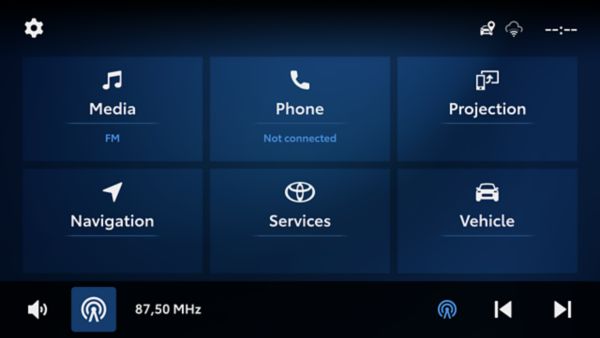
Ga op het multimediascherm naar Navigatie en selecteer vervolgens Instellingen rechtsboven in het scherm.
Tik daarna op ‘Kaartgegevens’. Het navigatieversienummer wordt bovenaan het scherm weergegeven.
Dit nummer moet 6.1.2 of hoger zijn (bijvoorbeeld 7.1.1 of hoger).
Deze functionaliteit zorgt ervoor dat bestuurders eenvoudig toegang hebben tot relevante zoekresultaten, wat de algehele zoekervaring verbetert. De meest relevante resultaten worden bovenaan de lijst weergegeven, voorzien van een highlight-ribbon en het merklogo.
Door op een van deze topresultaten te klikken, ga je naar het detailscherm. Hier ontdek je speciale aanbiedingen die beschikbaar zijn bij de betreffende Point of Interest (POI). Zodra je veilig geparkeerd staat, laat het detailscherm zien hoe je de aanbieding kunt verzilveren, bijvoorbeeld via een QR-code of kortingscode, die op de afbeelding of in de tekst kan worden weergegeven.
Offers laten zien welke Points of Interest (POI’s) in jouw omgeving kortingen en speciale aanbiedingen hebben. In sommige voertuigen zijn deze aanbiedingen te herkennen aan een cadeau-icoon naast het POI-logo.
De Smart Stop-functie bij een laag brandstofniveau is ontworpen om bestuurders tijdig te attenderen op nabijgelegen tankstations wanneer de brandstofvoorraad bijna op is. Het navigatiesysteem gebruikt realtime gegevens zoals het brandstofniveau van je voertuig, de afgelegde afstand en de locatie van beschikbare tankstations om slimme tankadviezen te geven.
Wanneer het systeem een laag brandstofniveau detecteert (een resterende actieradius van 140 km of 70 km), ontvang je aanbevelingen voor tankstations in de buurt. Door op de Smart Stops-kaart op het scherm te klikken, ga je naar het detailscherm. Zodra je voertuig veilig geparkeerd staat, kun je hier eventuele speciale aanbiedingen bekijken die beschikbaar zijn bij de betreffende Point of Interest (POI).
Deze Smart Stop-functie is ontworpen om een Point of Interest (POI) voor te stellen wanneer je langer dan twee uur hebt gereden. Het navigatiesysteem houdt rekening met factoren zoals rijtijd, huidige locatie en voorkeuren om relevante en interessante plekken aan te bevelen waar je even kunt pauzeren.
Tijdens je rit worden op vaste momenten aanbevelingen gedaan om je rijervaring te verbeteren. Door op de Smart Stops-kaart op het scherm te klikken, ga je naar het detailscherm. Zodra je voertuig veilig geparkeerd staat, kun je hier eventuele speciale aanbiedingen bekijken die beschikbaar zijn bij de betreffende POI.
Zodra je voertuig veilig geparkeerd staat, kun je op de POI klikken om het detailscherm te openen. In dit scherm zie je hoe je gebruik kunt maken van de aanbieding, afhankelijk van de POI, bijvoorbeeld via een QR-code of kortingscode die in de afbeelding of tekst kan worden weergegeven.
Het detailscherm toont ook de geldigheidsperiode van de aanbieding. Deze kan per POI verschillen.
De Offers-functie is beschikbaar voor Toyota-voertuigen met Toyota Smart Connect multimedia die na 2021 zijn geproduceerd en zijn uitgerust met Cloud Navigation.
De Smart Stops-functie is beschikbaar voor Aygo X, Yaris en Yaris Cross met Toyota Smart Connect multimedia met drie fysieke knoppen aan de zijkant van het scherm.
Om deze functies te gebruiken, heb je een voertuig nodig dat geschikt is voor Cloud Navigation en Offers of Offers & Smart Stops, in combinatie met een actief Cloud Navigation-abonnement (Smart Services/Smart Car).
Zorg er daarnaast voor dat navigatiegegevensdeling is ingeschakeld en dat de functie is geactiveerd in het navigatiesysteem.
De functies omvatten Branded Pins, waarbij merklogo’s met een cadeau-icoon (afhankelijk van het voertuig) op de kaart worden weergegeven. Zo kun je tijdens het rijden eenvoudig je omgeving verkennen.
In het instellingenmenu van het navigatiesysteem, onder ‘Services’, vind je de optie om Offers en Smart Stops in of uit te schakelen.
Je kunt ervoor kiezen om alleen Smart Stops uit te zetten; deze worden dan niet meer weergegeven. Schakel je Offers uit, dan verdwijnen Branded Pins, zoekresultaten en aanbevelingen volledig. Zo heb je zelf controle over de content die je ziet en kun je je navigatie-ervaring aanpassen aan je voorkeuren. De instellingen kun je op elk moment wijzigen.
De functie is ontworpen om in heel Europa beschikbaar te zijn, maar de eerste beschikbaarheid kan per land verschillen. We breiden de dekking continu uit om in steeds meer regio’s een volledige ervaring te bieden. Aan het gebruik van deze service zijn geen extra kosten verbonden.
Branded Pins zijn merklogo’s die direct op de kaart worden weergegeven en de locaties van Points of Interest (POI’s) aangeven. Zo vind en navigeer je eenvoudiger naar je favoriete bestemmingen.
Zodra je voertuig veilig geparkeerd staat, kun je op het logo op het scherm klikken om het detailscherm te openen. Hier ontdek je speciale aanbiedingen bij de betreffende POI en lees je hoe je deze kunt verzilveren, bijvoorbeeld via een QR-code of kortingscode die in de afbeelding of tekst kan worden getoond.
Bij recente modellen wordt bij POI’s met een aanbieding een cadeau-icoon weergegeven.
Nee. Je moet de OTA-installatie zelf starten zodra je in het voertuig bent.
Nee, je kunt de Over-The-Air (OTA)-update uitstellen. Je ontvangt na 7 dagen een herinnering. Je kunt de OTA-update ook op elk gewenst moment handmatig installeren via de multimediasettings in je voertuig door de installatie daar te starten.
Let op: het wordt aanbevolen om de OTA-update zo snel mogelijk te installeren zodra deze beschikbaar is, omdat deze nieuwe functies en verbeteringen van bestaande functies kan bevatten.
Let op: het wordt aanbevolen om de OTA-update zo snel mogelijk te installeren zodra deze beschikbaar is, omdat deze nieuwe functies en verbeteringen van bestaande functies kan bevatten.
Nee, OTA-updates zijn gratis gedurende 10 jaar na aankoop van de auto.
Nee. OTA-updates kunnen door de eigenaar zelf worden geïnstalleerd zodra ze beschikbaar zijn.
Vóór de installatie worden de details van de OTA-update weergegeven in de MyToyota-app en op het multimediascherm in de auto, zodat je de inhoud vooraf kunt bekijken.
Zodra je een OTA-melding ontvangt, volg je de instructies in de MyToyota-app of op het multimediascherm in de auto om de update te installeren.
De OTA-update duurt meestal 15 tot 30 minuten, afhankelijk van de grootte van het updatepakket en de kwaliteit van de netwerkverbinding.
Zodra de OTA-update beschikbaar is, ontvang je een melding via de MyToyota-app en op het multimediascherm in de auto.
Let op: nadat de update is aangevraagd, kan de daadwerkelijke installatie alleen vanuit het voertuig worden uitgevoerd. Om meldingen in de app te ontvangen, moet je geabonneerd zijn op Standard Services.
Ter bescherming van je privacy is een eenmalige toestemming vereist in de MyToyota-app of in de instellingen van het multimediasysteem om OTA-meldingen te ontvangen.
Let op: nadat de update is aangevraagd, kan de daadwerkelijke installatie alleen vanuit het voertuig worden uitgevoerd. Om meldingen in de app te ontvangen, moet je geabonneerd zijn op Standard Services.
Ter bescherming van je privacy is een eenmalige toestemming vereist in de MyToyota-app of in de instellingen van het multimediasysteem om OTA-meldingen te ontvangen.
OTA (Over-The-Air) maakt het mogelijk om de software van je voertuig via het voertuigennetwerk te updaten. Zo worden nieuwe functies toegevoegd en problemen verholpen zonder dat je naar de dealer hoeft.
OTA (Over-The-Air) maakt het mogelijk om de software van je voertuig via het voertuignetwerk te updaten. Zo worden nieuwe functies toegevoegd en problemen opgelost.
Wanneer het voertuig is aangesloten en wacht om te laden volgens een ingestelde laadtijd, en je deze laadtijd aanpast, kan het laden direct starten in plaats van te wachten op de nieuwe ingestelde tijd.
Je kunt het laden stoppen door op de knop naast de laadpoort te drukken. Daarna wordt de nieuwe laadtijd toegepast.
Connected Services en Connected Navigation zijn beschikbaar voor een periode van zes jaar vanaf de eerste activatie.
Om services te activeren, zorg ervoor dat:
je enkele ritten maakt, elk van ongeveer 20 minuten
Privacymodus is uitgeschakeld op het multimediascherm in de auto
je auto zich bevindt in een gebied met goede mobiele dekking
Houd er rekening mee dat de activatie soms tot 24 uur kan duren.
Op dit moment is dit alleen mogelijk als je al actief was in MyT! Sinds 24 maart kunnen alle klanten met een Proace van de oudere generatie overstappen naar de nieuwe MyToyota-app, mits zij al een account hadden en gebruikmaakten van Connected Services.
Raadpleeg de volledige onboardinggids of -video op de Toyota-website voor instructies over hoe je kunt migreren naar de nieuwe app (pagina Connected Services / MyToyota).
* Oudere generatie = Proace BEV en Proace City BEV, geproduceerd van 2020 tot en met februari 2024.
Nee, nieuwe Proace-voertuigen komen nog niet in aanmerking voor gebruik van de nieuwe MyToyota-app. Klanten kunnen de app wel downloaden via de appstores en een account aanmaken, maar zij kunnen geen voertuig aan hun account koppelen en zullen een foutmelding ontvangen.
Let op: ondersteuning van de MyToyota-app voor Proace-modellen van de huidige generatie wordt verwacht vanaf de tweede helft van 2026 (exacte timing nog te bepalen). Meer informatie volgt.
**HUIDIGE GENERATIE** =
MC Proace, Proace EV, Proace City, Proace City EV: productie vanaf maart 2024
Nieuwe Proace Max: productie vanaf juli 2024
Nee, je hebt de MyToyota-app nodig en een actief abonnement op het Connect & Secure-pakket. Afhankelijk van je voertuig kan Connect & Secure al inbegrepen zijn of tijdelijk als proef beschikbaar zijn. Is dat niet het geval, dan kun je het abonnement afsluiten via het betaalde abonnementsdeel in de app.
In de MyToyota-app ga je naar de pagina Remote Immobiliser. Scroll omlaag naar het gedeelte Beveiligingscode en kies ‘Code wijzigen’. Biometrische authenticatie is vereist en de motor wordt automatisch vergrendeld. Voer de nieuwe 6-cijferige code twee keer in om te bevestigen. Als je de vorige code bent vergeten, kun je direct in de app een nieuwe code aanmaken. Je ontvangt een melding zodra de update is voltooid.
- Sluit een abonnement af op het Connect & Secure-pakket in de MyToyota-app.
Maak een 6-cijferige code aan in de MyToyota-app.
Activeer Remote Immobiliser handmatig in de MyToyota-app of stel de Auto-modus in zodat deze automatisch wordt geactiveerd.
Deactiveer Remote Immobiliser handmatig in de MyToyota-app of via het multimediasysteem in de auto met je 6-cijferige code.
Zodra de status van Remote Immobiliser in de app is geladen, wordt de motor als ontgrendeld weergegeven. Je kunt de motor dan vergrendelen. De motor wordt automatisch vergrendeld wanneer de deuren worden gesloten of 60 minuten nadat de motor is uitgezet. Je ontvangt een pushmelding zodra de motor is vergrendeld.
Handmatig via de app:
Zodra de motor op de Remote Immobiliser-pagina als vergrendeld wordt weergegeven, kun je deze ontgrendelen via de app. Biometrische authenticatie is vereist. Zorg dat het voertuig netwerkdekking heeft. Als het commando succesvol wordt ontvangen, wordt de motor op afstand ontgrendeld. Als de code is vergeten, kan de motor nog steeds worden ontgrendeld.
Via het multimediasysteem in de auto:
Druk op het rempedaal en voer de startknop vier keer in om de invoer van de 6-cijferige code te activeren. Voer de code in via het multimediascherm. Je hebt maximaal 10 pogingen voordat het scherm wordt geblokkeerd. De code wordt lokaal in het voertuig opgeslagen, dus er is geen netwerkverbinding nodig.
Om de motor te vergrendelen, moet aan de volgende voorwaarden worden voldaan:
Je hebt een actief abonnement op het Connect & Secure-pakket.
Het onboardingproces is voltooid.
Biometrische authenticatie is ingeschakeld.
Alle portieren van het voertuig zijn vergrendeld.
Het voertuig heeft netwerkdekking.
De Auto-modus activeert de immobiliser automatisch wanneer je voertuig geparkeerd en vergrendeld is. Dit zorgt voor extra gemak en verhoogde veiligheid zonder dat je hiervoor actie hoeft te ondernemen in de app.
Je auto is standaard uitgerust met een startonderbreker die werkt via de transponder in de sleutel. Deze detecteert de transponder in de sleutel en moet aanwezig zijn om de motor te starten, ook wanneer Remote Immobiliser wordt gebruikt.
Remote Immobiliser is een extra beveiligingslaag waarvoor een abonnement nodig is en waarmee de eigenaar de motor kan vergrendelen met een 6-cijferige code.
Remote Immobiliser is een extra beveiligingslaag waarvoor een abonnement nodig is en waarmee de eigenaar de motor kan vergrendelen met een 6-cijferige code.
Er zijn drie manieren om een vergeten code te herstellen:
Ontgrendel de motor handmatig via de app met biometrische authenticatie (netwerkdekking van het voertuig vereist).
Maak een nieuwe code aan via het gedeelte ‘Code wijzigen’ in de app (netwerkdekking van het voertuig vereist).
Haal de 6-cijferige code op via het gedeelte ‘Bekijk code’ in de app en voer deze in op het multimediascherm in de auto wanneer hierom wordt gevraagd (het voertuig kan offline zijn).
Je kunt de motor ontgrendelen door de code rechtstreeks in te voeren via het multimediasysteem in de auto. Als alternatief kun je inloggen op je account op een andere smartphone.
Controleer de internetverbinding van zowel je voertuig als je mobiele telefoon. Zorg ervoor dat alle portieren zijn vergrendeld en dat de app is bijgewerkt naar de nieuwste versie. Blijft het probleem bestaan, neem dan contact op met de klantenservice.
Remote Immobiliser is een extra beveiligingslaag die voorkomt dat de motor start, tenzij de juiste toegangscode of het juiste signaal wordt ontvangen. De functie helpt je voertuig te beschermen tegen ongeautoriseerd gebruik of diefstal.
Er kunnen verschillende redenen zijn waarom Remote Services niet werken. Hieronder vind je de meest voorkomende oorzaken:
Je voertuig ondersteunt (nog) niet alle Remote Services
Neem contact op met je dealer om te controleren welke Remote Services voor jouw voertuig beschikbaar zijn.Je hebt geen abonnement op Remote Services
Controleer of je bent geabonneerd op de Remote Services die je wilt gebruiken.Het voertuig staat in slaapstand
Als je je auto langer dan 9 dagen niet hebt gebruikt, kan deze in slaapstand zijn gegaan om de accu te beschermen.
Start in dat geval de motor handmatig om het systeem weer te activeren.Voorwaarden voor gebruik zijn niet vervuld
Controleer of:alle portieren gesloten zijn
de motorkap gesloten is
de smart key niet in het voertuig ligt
Remote Climate werkt niet bij een Plug-in Hybrid of elektrische auto
De acculading kan te laag zijn (onder 30% of 20%, afhankelijk van het model). Laad in dat geval de accu op.
Bij Plug-in Hybride voertuigen werkt Remote Climate niet als de buitentemperatuur lager is dan –10 °C.
Blijft het probleem bestaan, neem dan contact op met je Toyota-dealer of raadpleeg de supportsectie van de MyToyota-app.
De periode van 4 jaar gaat in vanaf het moment dat het voertuig wordt aangeschaft.
De eerste 4 jaar (dit kan per land verschillen) van online multimedianavigatieservices zijn gratis. Daarna kun je een abonnement afsluiten.
Het Map Care-pakket bevat alle kaartupdates en bijbehorende online services. Het Service Pack omvat onze online servicefuncties. Je kunt een abonnement aanschaffen via onze mobiele app. Controleer de app voor de actuele prijzen.
Je kunt geen services aanschaffen via het multimediasysteem. Services zijn alleen te koop via de MyToyota-app.
Klanten ontvangen 4 jaar gratis services voor Map Care (2 kaartupdates per jaar) en online services zoals weer, parkeren, verkeer en brandstofprijzen. Na deze gratis periode kun je je abonnementen verlengen of opnieuw aanschaffen via de MyToyota-app.
Je ontvangt 30 dagen voordat de gratis periode van 4 jaar afloopt een melding op het scherm van het multimediasysteem in de auto.
Via de MyToyota-app kun je services verlengen zodra deze zijn verlopen. Bij het verlengen van het Service Pack kun je kiezen uit 1 maand, 1 jaar of 4 jaar*. Raadpleeg de MyToyota-app voor de actuele prijzen.
De meeste van onze voertuigen vanaf 2019 ondersteunen Apple CarPlay en Android Auto, waardoor je eenvoudig toegang hebt tot je favoriete apps via het multimediascherm in de auto.
Ondersteunde apps
Navigatie
Google Maps
Waze
Apple Maps (met EV-routeplanning op nieuwere Toyota BEV’s)
Muziek & audio
Spotify
Apple Music
Audible
YouTube Music
Communicatie
WhatsApp
Berichten
Telefoon
Agenda
Spraakassistenten
Siri en Google Assistant voor handsfree bediening
Verbinden
Bedrade verbinding
Sluit je smartphone aan op de USB-poort van het voertuig.
Apple CarPlay of Android Auto start automatisch.
Draadloze verbinding
Android Auto: ondersteund op apparaten met Android 11 of nieuwer
Apple CarPlay: draadloze ondersteuning beschikbaar op veel Toyota- en Lexus-modellen vanaf 2023
Compatibiliteit
Heeft je Android-toestel Android 9 of ouder, dan moet je de Android Auto-app handmatig installeren.
Draadloze functionaliteit kan per model en regio verschillen. Raadpleeg de voertuigspecificaties of neem contact op met je dealer.
Referentie
Bekijk de volledige lijst met voertuigen die Apple CarPlay ondersteunen op de officiële website van Apple:
https://www.apple.com/ios/carplay/available-models/
Remote Climate is beschikbaar op geselecteerde modellen en kan via de MyToyota-app op afstand worden geactiveerd om het interieur van de auto te koelen of te verwarmen tot een comfortabele temperatuur.
Via het onderdeel Remote Control kun je Remote Climate starten voor 20 minuten (op sommige voertuigen 2 × 20 minuten). Wanneer Remote Climate actief is, toont de MyToyota-app hoeveel tijd er nog resteert voordat de functie automatisch uitschakelt.
Basis Remote Climate
Bij sommige voertuigen geldt dat bij het activeren van Basic Remote Climate ook de motor start. In dat geval worden de laatst gebruikte instellingen van de vorige rit geactiveerd, zoals:
temperatuurinstelling
stoelverwarming
radio, enz.
Uitgebreide Remote Climate (op geselecteerde voertuigen)
Op bepaalde modellen zijn geavanceerdere functies beschikbaar, waaronder:
op afstand bedienen van stoelventilatie, stoelverwarming, stuurverwarming en ontwaseming
Remote Climate plannen: stel vooraf in wanneer het interieur gekoeld of verwarmd moet zijn
Wettelijke en technische voorwaarden
Basic Remote Climate op voertuigen met verbrandingsmotor en hybrides is niet beschikbaar in Oostenrijk en Duitsland vanwege wettelijke beperkingen.
Volledig elektrische voertuigen (BEV) en plug-in hybrides (PHEV) hebben wel Remote Climate in Oostenrijk en Duitsland.
Accu- en temperatuurvereisten
BEV’s en PHEV’s hebben minimaal 20% of 30% acculading nodig (afhankelijk van het model) om de airconditioning te kunnen gebruiken.
ProAce Max vereist minimaal 50% acculading om geplande Remote Climate te starten.
Bij een buitentemperatuur lager dan –10 °C werkt Remote Climate niet op plug-in hybride voertuigen.
Voor model-specifieke beschikbaarheid en details kun je contact opnemen met een erkende Toyota-dealer of de informatie raadplegen op de lokale Toyota/Lexus-website.
Toyota Smart Connect Multimedia omvat diverse online navigatieservices die realtime informatie bieden, zoals verkeersinformatie en flitsmeldingen.
Deze functies vereisen een internetverbinding. Heb je geen verbonden apparaat, dan kun je je smartphone verbinden door Wi-Fi- of Bluetooth-tethering te delen met het multimediasysteem van de auto.
Gratis services bij nieuwe Toyota’s
Elke nieuwe Toyota wordt geleverd met 3 jaar* gratis kaartupdates (Map Care-abonnement) voor het navigatiesysteem, inclusief aanvullende online services zoals:
Realtime verkeersinformatie
Coyote (waar beschikbaar) of Cyclops flitsmeldingen
Google Street View (waar beschikbaar)
Points of Interest
Brandstofprijzen
Parkeerinformatie
Weer
Voor meer informatie kun je onze How-to-gidsen raadplegen.
* Is je auto uitgerust met MM21, dan geldt een gratis periode van 4 jaar.
Als je voertuig deze functie ondersteunt, kun je een route plannen of een bestemming rechtstreeks vanuit de app naar je auto sturen.
Om een bestemming te verzenden via Send to Car, selecteer je in de app een Point of Interest (POI) op de kaart. Afhankelijk van het multimediasysteem van je voertuig zie je direct de optie ‘Send to Car’, of eerst een ‘Route’-knop waarna je kunt kiezen voor ‘Verzenden’.
Zorg ervoor dat je in de auto bent ingelogd op het multimediasysteem om de rit te ontvangen. Verzonden bestemmingen verschijnen in het navigatiegedeelte van het multimediasysteem en zijn direct klaar om te starten.
Houd er rekening mee dat deze functie een actief abonnement vereist en niet beschikbaar is op alle multimediasystemen.
Als je voorkeursdealer niet wordt weergegeven wanneer je zoekt of de kaart bekijkt, neem dan contact met ons op via de Support-knop in de onderste navigatie van de app.
Kies ‘Contact opnemen’, selecteer Service en onderhoud als supportcategorie en beschrijf het probleem in het daarvoor bestemde tekstveld.
Hybrid Driving Coaching biedt gerichte coaching om je hybride rijstijl te verbeteren, op basis van je eerdere ritten. Zo help je het EV-gebruik te optimaliseren, het brandstofverbruik te verlagen en je milieu-impact te beperken.
Ja, op geselecteerde modellen. Op het dashboard van de startpagina zie je het huidige brandstofniveau als een meter, evenals de actieradius.
Ja, op geselecteerde modellen kun je de status van de portieren, ramen, kofferklep en verlichting bekijken.
Ga hiervoor naar de startpagina en klik op Voertuigstatus.
Voor meer informatie over de beschikbaarheid per model kun je contact opnemen met een erkende Toyota-dealer of de informatie raadplegen op de lokale Toyota/Lexus-website.
Ja, op geselecteerde modellen kun je je auto op afstand vergrendelen en ontgrendelen via de app. In de kaart Remote Control vind je de knoppen vergrendelen/ontgrendelen.
Houd er rekening mee dat het volgende niet mogelijk is:
de auto vergrendelen als één van de portieren open staat en/of als de smart key zich in de auto bevindt
de auto ontgrendelen als het alarmsysteem is ingeschakeld of wanneer de auto handmatig met de fysieke sleutel is vergrendeld
Voor meer informatie over de beschikbaarheid per model kun je contact opnemen met een erkende Toyota-dealer of de informatie raadplegen op toyota.nl.
Ja, op geselecteerde modellen kun je je auto eenvoudig terugvinden op een drukke parkeerplaats door op afstand de alarmlichten in te schakelen.
Ga in de MyToyota-app naar de kaart Remote Control en tik op Alarmlichten om deze te activeren. De alarmlichten worden 60 seconden ingeschakeld. Na deze 60 seconden kun je de functie opnieuw activeren.
Voor meer informatie over de beschikbaarheid per model kun je contact opnemen met een erkende Toyota-dealer of de informatie raadplegen op toyota.nl.
Ingebouwde navigatiesystemen ontvangen hun basisgegevens via GPS-satellietsignalen.
Het multimediasysteem heeft daarnaast een internetverbinding nodig om online informatie te ontvangen, zoals Realtime Traffic, Coyote (waar beschikbaar), Google Street View (waar beschikbaar), weer, brandstofprijzen, parkeren en online POI’s.
Het multimediasysteem heeft daarnaast een internetverbinding nodig om online informatie te ontvangen, zoals Realtime Traffic, Coyote (waar beschikbaar), Google Street View (waar beschikbaar), weer, brandstofprijzen, parkeren en online POI’s.
De meeste Toyota-modellen die momenteel worden verkocht, zijn uitgerust met online navigatieservices, zoals:
Realtime verkeersinformatie
Flitsmeldingen
Google Street View (waar beschikbaar)
Points of Interest
Brandstofprijzen
Parkeerinformatie
Weer
De beschikbaarheid van deze services is afhankelijk van model en uitvoering. Neem contact op met je Toyota-dealer om te controleren welke functies voor jouw voertuig beschikbaar zijn.
Als het account van de vorige eigenaar nog actief is in het multimediasysteem, kun je de services direct blijven gebruiken gedurende de gratis abonnementsperiode. Wij raden echter sterk aan om uit te loggen en je eigen account aan te maken, zodat je volledige controle hebt over je abonnementen en instellingen.
Dit kan op de volgende manieren:
Via de MyToyota-app op je smartphone
Registreer eerst een account en log vervolgens in op het multimediasysteem van je voertuig.Via het Online-menu in het multimediasysteem
Je dient in dat geval binnen 14 dagen de gebruiksvoorwaarden te accepteren via het Customer Portal / Persoonlijke pagina.
(Deze optie geldt alleen voor multimediasystemen van vóór de MM21-generatie.)Via het Customer Portal
Nadat je via de website een account hebt aangemaakt, kun je met je inloggegevens inloggen op het multimediasysteem in de auto.
Zo zorg je ervoor dat alle services correct aan jouw account zijn gekoppeld.
Open in de MyToyota-app eerst MyGarage en selecteer je auto. Ga vervolgens naar het Connected Services Centre en volg de stappen om de Smart Services te activeren die voor jouw voertuig beschikbaar zijn.
Zodra de services zijn geactiveerd, starten de 4 jaar gratis online navigatieservices.
Voor meer informatie kun je onze handleidingen raadplegen.
Ga in het menu van het multimediasysteem naar de e-Store, onderdeel In Car (hiervoor heb je een internetverbinding nodig en moet je ingelogd zijn). Selecteer de Coyote-app en kies Installeren. Zodra Coyote is geïnstalleerd, verschijnt er een pop-up. Open de app en kies OK om deze automatisch te starten. Coyote verschijnt voortaan onder Apps.
Voor meer informatie kun je onze handleidingen raadplegen.
Let op:
Coyote is niet beschikbaar voor voertuigen met Toyota Smart Connect.
Coyote kan pas worden gebruikt nadat je 200 km met de auto hebt gereden.
Gebruikers in Frankrijk, België en Luxemburg krijgen Coyote gratis tijdens de Map Care-periode (de eerste 3 jaar, na het rijden van 200 km).
In alle andere landen kunnen klanten een Coyote-abonnement aanschaffen via de e-Store in het Customer Portal.
Je kunt de vervaldatum van je Map Care- en MyToyota Multimedia-abonnementen op twee manieren controleren:
Via de MyToyota-app
Heb je een Smart + Connected-abonnement, dan is dit tot 4 jaar geldig. De vervaldatum is direct zichtbaar in het Connected Services Centre van de MyToyota-app.
Via het multimediascherm in de auto
Ga in het multimediasysteem naar:
Instellingen → Navigatie → Kaartgegevens → Kaartgegevensinfo.
Voor Toyota Smart Connect (MM21)-systemen worden kaartupdates twee keer per jaar uitgebracht (voorjaar en najaar). Ook als je oudere kaarten blijft gebruiken, zul je meestal geen grote verschillen merken en kun je de service langdurig blijven gebruiken.
Deze functie is beschikbaar op geselecteerde modellen. Als je de MyToyota-app op je smartphone hebt geïnstalleerd en pushmeldingen hebt ingeschakeld, ontvang je 5–10 minuten na het beëindigen van je rit een melding bij onder andere:
raam/ramen open
portier(en) ontgrendeld
portier(en) open
kofferklep open
alarmlichten aan
motorkap open
schuif-/kanteldak open
verlichting aan
waarschuwingslampjes
herinnering achterbank
Niet elk voertuig kan deze pushmeldingen verzenden. Controleer daarom bij je Toyota-dealer welke functies jouw voertuig ondersteunt.
Alle pushmeldingen blijven daarnaast onbeperkt zichtbaar in het tabblad Meldingen onderin het appscherm.
Sommige Toyota’s zijn uitgerust met een ingebouwd navigatiesysteem in het multimediasysteem. Dit betekent dat de kaart zonder internetverbinding beschikbaar is. Andere voertuigen beschikken niet over ingebouwde navigatie.
In beide gevallen is het mogelijk om via een abonnement in de MyToyota-app gebruik te maken van Cloud Navigation. Met Cloud Navigation profiteer je van realtime informatie, zoals wegwerkzaamheden, ongevallen, brandstof- of laadpunten en parkeertarieven.
Let op: niet alle voertuigen zijn geschikt voor Cloud Navigation.
Ga in het menu van het multimediasysteem in de auto naar de e-Store, onderdeel In Car (hiervoor heb je een internetverbinding nodig en moet je ingelogd zijn). Selecteer de Coyote-app en kies Installeren. Zodra Coyote is geïnstalleerd, verschijnt er een pop-up. Open de app en kies OK om deze automatisch te starten. Coyote wordt voortaan weergegeven onder Apps.
Voor meer informatie kun je onze How-to-gids raadplegen.
Let op:
Coyote is niet beschikbaar voor voertuigen die zijn uitgerust met Toyota Smart Connect.
Coyote kan pas worden gebruikt nadat je 200 km met de auto hebt gereden.
Gebruikers in Frankrijk, België en Luxemburg krijgen Coyote gratis gedurende de Map Care-periode (de eerste 3 jaar, na het rijden van 200 km).
In alle andere landen kunnen klanten een Coyote-abonnement aanschaffen via de e-Store in het Customer Portal.
Open in de MyToyota-app MyGarage en selecteer je auto. Ga vervolgens naar het Connected Services Centre en volg de instructies om de Smart Services te activeren die voor jouw voertuig beschikbaar zijn. Zodra de services zijn geactiveerd, start de gratis proefperiode van 4 jaar voor online navigatieservices.
Na afloop van de proefperiode kun je online (cloud) navigatie blijven gebruiken door een abonnement af te sluiten op het Smart Car-bundel.
Voor meer informatie kun je onze handleidingen raadplegen.
De meeste Toyota-modellen die momenteel worden verkocht, zijn uitgerust met online navigatieservices, zoals:
Realtime verkeersinformatie
Flitsmeldingen
Google Street View (waar beschikbaar)
Points of Interest
Brandstofprijzen
Parkeerinformatie
Weer
De beschikbaarheid van deze services is afhankelijk van model en uitvoering. Controleer bij je dealer of via Toyota Connectivity Match welke functies voor jouw voertuig beschikbaar zijn.
Het kan zijn dat je Smart Digital Key buiten bereik is, dat de signaalsterkte onvoldoende is om op afstand te vergrendelen of ontgrendelen, of dat Bluetooth op je smartphone is uitgeschakeld.
Om te controleren of alles correct werkt:
Ga naar de instellingen van je smartphone en controleer of Bluetooth is ingeschakeld.
Haal je smartphone uit je zak of tas en raak met je telefoon de deurhendel aan om te zien of het voertuig wordt vergrendeld of ontgrendeld.
Let op: bij de Toyota Aygo X is de passieve vergrendel-/ontgrendelfunctie niet beschikbaar. Je kunt de auto in dat geval wel vergrendelen en ontgrendelen via de Remote Control-functie in de app.
Toegang van een uitgenodigde bestuurder verwijderen
i) Door de Smart Digital Key-eigenaar
Tik op ‘Digital Key-instellingen’ op het startscherm van de MyToyota-app.
Ga dicht bij je voertuig staan.
Veeg naar links over de naam van de uitgenodigde bestuurder die je wilt verwijderen en tik op het prullenbak-icoon.
Bevestig met ‘Verwijderen’.
Na het verwijderen ontvangen jij en de uitgenodigde bestuurder een melding over het intrekken van de Digital Key.
Let op: als de uitgenodigde bestuurder rijdt op het moment dat de toegang wordt verwijderd, stopt het voertuig niet. De verwijdering wordt pas van kracht zodra het voertuig wordt uitgezet.
ii) Door de uitgenodigde bestuurder zelf
Tik op ‘Digital Key-instellingen’ op het startscherm van de MyToyota-app.
Kies ‘Digital Key verwijderen’ en bevestig met ‘Verwijderen’.
Na afloop ontvangen jij en de eigenaar een melding over het verwijderen van de Digital Key.
Voor meer details kun je het bijbehorende ‘How-to’-materiaal raadplegen.
Je kunt je smartphone gebruiken als sleutel om het voertuig te openen en te rijden. Bepaalde voertuigmodellen zijn uitgerust met de Smart Digital Key-functie (raadpleeg je lokale erkende Toyota-dealer voor meer informatie). Met deze functie kun je Smart Digital Key registreren via Bluetooth van je smartphone met behulp van de MyToyota-app.
Een smartphone die is ingesteld voor Smart Digital Key, met Bluetooth ingeschakeld en de MyToyota-app geopend of actief op de achtergrond, wordt op korte afstand herkend en verbonden met het voertuig. Hierdoor kun je het voertuig ontgrendelen, starten en vergrendelen met je smartphone of simpelweg door de deurhendel aan te raken.
Let op: houd altijd de Smart Key / fysieke sleutel of keycard bij de hand als back-up voor toegang tot het voertuig.
Voor het gebruik van Smart Digital Key is een actieve proefperiode of een abonnement vereist.
Registreer een account via de MyToyota-app om te beginnen met het instellen van je Smart Digital Key*. Zorg ervoor dat je beschikt over actieve Standard Connectivity met een Smart Digital Key-proefperiode of abonnement.
Volg vervolgens de stappen in de MyToyota-app om de Smart Digital Key aan je smartphone en voertuig te koppelen. Test daarna de functies ontgrendelen, starten en vergrendelen om te bevestigen dat de installatie succesvol is.
Je kunt de functies en mogelijkheden van je voertuig bekijken in de MyToyota-app of contact opnemen met je lokale erkende Toyota-dealer voor meer informatie.
Om te beginnen met het instellen van de Smart Digital Key, heb je de fysieke sleutel en toegang tot het voertuig nodig.
Controleer in de MyToyota-app of een proefperiode of betaald abonnement voor Smart Digital Key actief is en of Standard Connectivity is ingeschakeld.
Tik op ‘Mijn Digital Key instellen’ op het startscherm van de MyToyota-app.
Schakel Bluetooth en biometrische verificatie op je smartphone in. Deze stap wordt overgeslagen als dit eerder al is ingesteld.
Verifieer je telefoonnummer door de 6-cijferige code in te voeren die je per sms ontvangt. Deze stap wordt overgeslagen als je nummer al is geverifieerd.
Zorg ervoor dat slechts één dataverbinding actief is (Wi-Fi of mobiel internet) voordat je verdergaat.
Sta toe dat je smartphone de Digital Key downloadt.
Lees de informatie in de MyToyota-app over het koppelproces.
Zet het voertuig aan en houd de fysieke sleutel tegen de ‘Start’-knop totdat je twee pieptonen hoort.
Geef de MyToyota-app toestemming om Bluetooth te gebruiken en tik op ‘Koppelen’.
Wacht tot de verbinding is voltooid.
Bij een succesvolle installatie verschijnt de melding ‘Digital Key instellen voltooid’.
Raadpleeg het bijbehorende ‘How-to’-materiaal voor meer gedetailleerde informatie.
Zorg ervoor dat er een actieve proefperiode of een betaald abonnement voor Smart Digital Key is.
Tik op ‘Digital Key-instellingen’ op het startscherm van de MyToyota-app. Je kunt via de app maximaal 4 Digital Keys delen.
Tik op ‘Digital Key delen’.
Voer de voornaam, achternaam en het telefoonnummer van de nieuwe gebruiker in, of voeg deze toe vanuit je contacten.
Tik op ‘Delen’ en bevestig met ‘Sleutel delen’.
Je ontvangt een melding over de reactie op de uitnodiging voor de Digital Key. Je kunt de gedeelde toegang op elk moment intrekken.
Raadpleeg het ‘How-to’-materiaal voor meer gedetailleerde informatie.
Je kunt via de MyToyota-app maximaal 4 Digital Keys delen, naast de toegang van de eigenaar.
Een uitnodiging voor een gedeelde Digital Key ontvang je via een sms met een link naar de MyToyota-app.
Tik op de link in de sms.
De MyToyota-app opent en vraagt je om de uitnodiging voor de Digital Key te accepteren of te weigeren.
Tik op ‘Accepteren’ om de gedeelde Digital Key te ontvangen.
Schakel Bluetooth en biometrische verificatie op je smartphone in. Deze stap wordt overgeslagen als dit eerder al is ingesteld.
Verifieer je telefoonnummer door de 6-cijferige code in te voeren die je per sms ontvangt. Deze stap wordt overgeslagen als je nummer al is geverifieerd.
Zorg ervoor dat slechts één dataverbinding actief is (Wi-Fi of mobiel internet) voordat je verdergaat.
Sta toe dat je smartphone de Digital Key downloadt.
Bij een succesvolle installatie verschijnt de melding ‘Digital Key instellen voltooid’.
Let op: nieuwe gebruikers van de MyToyota-app moeten eerst een account aanmaken voordat zij een uitnodiging voor een Digital Key kunnen accepteren.
Neem contact op met onze klantenservice.
Smart Digital Key biedt twee manieren om je voertuig te vergrendelen en ontgrendelen:
i) Vergrendelen/ontgrendelen op afstand
Beschikbaar wanneer je smartphone zich binnen 10 meter van het voertuig bevindt.
Tik op het vergrendel- of ontgrendelpictogram op de startpagina van de MyToyota-app.
ii) Passief vergrendelen/ontgrendelen*
Beschikbaar wanneer je smartphone zich binnen 3 meter van het voertuig bevindt.
Raak de deurhendel aan om het voertuig te vergrendelen of ontgrendelen.
Let op: het is niet mogelijk om het voertuig te vergrendelen als de telefoon in de auto is achtergelaten. Je hoort in dat geval een geluidssignaal ter waarschuwing.
Wil je je telefoon bewust in de auto achterlaten terwijl Smart Digital Key actief is, zorg er dan voor dat je de fysieke sleutel bij je hebt en Bluetooth op je smartphone uitschakelt voordat je het voertuig vergrendelt.
Zodra de Digital Key aan je smartphone is gekoppeld, kan deze niet door anderen worden gebruikt en niet worden gemanipuleerd. Het systeem van de auto zorgt ervoor dat de sleutel sterk aan jouw telefoon is gekoppeld en niet kan worden gestolen of onderschept.
De BLE-communicatietechnologie (Bluetooth Low Energy) die wordt gebruikt voor Smart Digital Key is moderner en daardoor beter bestand tegen diefstalmethoden dan klassieke fysieke sleutels:
Versleutelde communicatie voor een veilige verbinding
Eenmalige sleutels (one-time keys) om elke communicatie-uitwisseling te beveiligen
Als je voertuig is uitgerust met Smart Digital Key, wordt deze functie als service weergegeven in je MyToyota- of Lexus Link+-app.
Houd er rekening mee dat de beschikbaarheid kan verschillen per model, uitvoering en markt. Raadpleeg je lokale Toyota- of Lexus-dealer voor aanvullende informatie.
Smart Digital Key kent drie detectiebereiken op basis van nabijheid:
Vergrendelen/ontgrendelen op afstand
Beschikbaar wanneer de Smart Digital Key binnen 10 meter wordt gedetecteerd.Passief vergrendelen/ontgrendelen*
Beschikbaar wanneer de Smart Digital Key binnen 3 meter wordt gedetecteerd.Motor starten
Beschikbaar wanneer de Smart Digital Key in het voertuig wordt gedetecteerd.
Let op: om passief te vergrendelen of ontgrendelen moet je de deurhendel aanraken.
De Smart Digital Key wordt ondersteund op:
iOS-apparaten met versie 15.0 of hoger
Android-apparaten met versie 12 of hoger
De Smart Digital Key wordt niet ondersteund op:
Huawei-apparaten
(Huawei heeft in juni 2021 zijn eigen besturingssysteem HarmonyOS geïntroduceerd.)Apparaten zonder sterke biometrische authenticatie, waaronder:
Samsung Galaxy A10, A20 en A30
LG K20, K30 en K40
Moto E6 en E7
Nokia 1.3 en 2.3
Smart Digital Key gebruikt Bluetooth met de MyToyota-app actief op de achtergrond en binnen nabijheid van het voertuig om toegang te krijgen en te rijden.
Remote Control via de MyToyota-app maakt het mogelijk om het voertuig op afstand via internet te vergrendelen of ontgrendelen, maar vereist altijd een fysieke sleutel om daadwerkelijk weg te rijden.
Nee*. Een smartphone die is ingesteld voor Smart Digital Key, met Bluetooth ingeschakeld en de MyToyota-app geopend of actief op de achtergrond, wordt op korte afstand herkend en verbonden met het voertuig. Hierdoor kun je het voertuig ontgrendelen, starten en vergrendelen terwijl je smartphone in je zak of tas blijft.
Let op: om veiligheidsredenen is biometrische verificatie elke 48 uur vereist.
Je kunt deze biometrische verificatie uitvoeren door in te loggen in de MyToyota-app.
Als de verificatie niet binnen 48 uur wordt uitgevoerd, worden de Smart Digital Key-functies tijdelijk geblokkeerd. Om ze weer te activeren, hoef je alleen de biometrische verificatie opnieuw uit te voeren.
Installeer de MyToyota-app op je nieuwe smartphone en log in met je bestaande account.
Op de startpagina van de MyToyota-app zie je dat de knop ‘Digital Key-instellingen’ is vervangen door ‘Mijn Digital Key instellen’.
Tik op ‘Mijn Digital Key instellen’ en volg dezelfde stappen als bij het eerste instellen van je Smart Digital Key.
Let op: om je Smart Digital Key over te zetten naar een nieuwe smartphone, mag je de Smart Digital Key op je oude smartphone niet uitschakelen en moet je proefperiode of abonnement actief zijn.
Om te beginnen met het deactiveren van de Digital Key, heb je de fysieke sleutel en toegang tot het voertuig nodig.
Tik op ‘Digital Key-instellingen’ op het startscherm van de MyToyota-app.
Tik op ‘Digital Key deactiveren’ en bevestig met ‘Deactiveren’.
Lees de informatie in de MyToyota-app over het deactivatieproces.
Na een succesvolle deactivatie verschijnt de melding ‘Digital Key gedeactiveerd’.
Raadpleeg het bijbehorende ‘handleiding’-materiaal voor meer gedetailleerde informatie.
Het claimen van voertuigtoegang als uitgenodigde Smart Digital Key-bestuurder zal de Smart Digital Key deactiveren en alle Digital Keys verwijderen (zowel van de eigenaar als van gedeelde gebruikers).
Als dit per ongeluk of bewust gebeurt, moet je het installatieproces opnieuw doorlopen om de Smart Digital Key opnieuw te activeren.
Smart Digital Key-functies werken niet wanneer de batterij van de telefoon leeg is.
De vergrendel- en ontgrendelfuncties van Smart Digital Key werken wanneer je auto is uitgerust met een aftermarket startonderbreker.
De motorstartfunctie van Smart Digital Key werkt niet wanneer je auto is uitgerust met een aftermarket startonderbreker.
Wil je Smart Digital Key gebruiken in combinatie met een aftermarket startonderbreker, zorg er dan voor dat je altijd de transponder van de startonderbreker bij je draagt.
Zodra de Smart Digital Key is ingesteld, kun je deze verwijderen via het multimediasysteem van het voertuig.
Ga op het hoofddashboard van het multimediasysteem naar het instellingen-icoon, scroll naar beneden en tik op ‘Info & beveiliging’.
Hier zie je in de Digital Key-instellingen of de Digital Key actief is.Tik op ‘Digital Keys verwijderen’ om het verwijderingsproces te starten.
Bevestig dat je de Digital Key wilt verwijderen en plaats de fysieke sleutel op de Start-knop.
Na een succesvolle deactivatie verschijnt de melding ‘Digital Key gedeactiveerd’.
Raadpleeg het bijbehorende ‘How-to’-materiaal voor meer gedetailleerde informatie.
Als je merkt dat de Digital Key buiten of in het voertuig niet goed wordt gedetecteerd, kun je het detectiebereik aanpassen.
Tik op ‘Digital Key-instellingen’ op het startscherm van de MyToyota-app.
Tik op ‘Bereik aanpassen’ (Customise Range).
De Digital Key heeft standaardinstellingen die voor de meeste bestuurders geschikt zijn. De detectie kan echter worden beïnvloed door hoe je je smartphone bij je draagt, bijvoorbeeld in een achterzak, tas of in je hand.
Kies één van de drie gevoeligheidsniveaus op basis van je voorkeur en tik op ‘Opslaan’.
Na een succesvolle wijziging verschijnt een bevestigingsmelding.
Raadpleeg het bijbehorende ‘How-to’-materiaal voor meer gedetailleerde informatie.
De Smart Digital Key is mogelijk buiten bereik of het signaal is te zwak om op afstand te vergrendelen of ontgrendelen. Leg je smartphone op de middenconsole of op de draadloze oplader.
Je Smart Digital Key kan werken zonder netwerkdekking. Zorg er wel voor dat je vooraf inlogt in de MyToyota-app voordat je een gebied met slechte dekking ingaat, zodat de app op de achtergrond actief blijft.
Nee, een Smart Digital Key werkt niet goed wanneer de app is geïnstalleerd in de privéruimte. Zorg er daarom voor dat de MyToyota-app niet in de privéruimte is geïnstalleerd wanneer je de Smart Digital Key gebruikt.
Problemen met ontgrendelen, vergrendelen of starten van het voertuig
Oorzaak:
Smart Digital Key-proefperiode of abonnement is verlopen
Oplossing:
Ga naar de MyToyota-app en sluit opnieuw een Smart Digital Key-abonnement af.
Oorzaak:
Smart Digital Key is niet ingesteld
Oplossing:
Tik op ‘Mijn Digital Key instellen’ op het startscherm van de MyToyota-app en volg de installatiestappen.
Oorzaak:
Smart Digital Key is verwijderd of toegang is ingetrokken (bij een uitgenodigde bestuurder)
Oplossing:
Ben je eigenaar: tik op ‘Mijn Digital Key instellen’ en doorloop opnieuw de setup.
Ben je uitgenodigde bestuurder: vraag de eigenaar om je opnieuw uit te nodigen en volg de setup voor uitgenodigde bestuurders.
Oorzaak:
Voertuigtoegang is geclaimd door een andere bestuurder
Oplossing:
Ga naar je voertuig en claim de voertuigtoegang. Daarna verschijnt ‘Mijn Digital Key instellen’ in de app; volg de setup opnieuw.
Oorzaak:
Bluetooth op je smartphone staat uit
Oplossing:
Schakel Bluetooth in via de instellingen van je smartphone.
Oorzaak:
48-uurs biometrische verificatie niet uitgevoerd
Oplossing:
Log opnieuw in op de MyToyota-app.
Oorzaak:
MyToyota-app is gesloten en draait niet op de achtergrond
Oplossing:
Log in op de app en laat deze op de achtergrond actief.
Problemen met op afstand ontgrendelen/vergrendelen
Oorzaak:
Smart Digital Key is buiten bereik of signaal is te zwak
Oplossing:
Ga dichter bij het voertuig staan tot de vergrendel-/ontgrendelpictogrammen blauw worden in de app.
Oorzaak:
Bluetooth staat uit
Oplossing:
Schakel Bluetooth in op je smartphone.
Problemen met passief ontgrendelen/vergrendelen (deurhendel)
Oorzaak:
Smart Digital Key is buiten bereik of signaal is te zwak
Oplossing:
Haal je smartphone uit je zak of tas en raak de deurhendel aan.
Oorzaak:
Bluetooth staat uit
Oplossing:
Schakel Bluetooth in op je smartphone.
Problemen met starten van het voertuig
Oorzaak:
Bluetooth staat uit
Oplossing:
Schakel Bluetooth in op je smartphone.
Oorzaak:
Smart Digital Key is buiten bereik of signaal is te zwak
Oplossing:
Leg je smartphone op de middenconsole of op de draadloze oplader.
Als je wilt, kan ik dit ook inkorten tot een snelle checklist of opsplitsen per foutmelding in de app.
Ja. Je kunt een Smart Digital Key+ koppelen aan een secundair bestuurdersprofiel als deze gebruiker een geldig profiel heeft (bijvoorbeeld via Google of Apple). Voor elke bestuurder moet een apart Digital Key-profiel worden aangemaakt.
Ja, de eigenaar kan een gedeelde sleutel op elk moment intrekken via de Wallet.
Open je Wallet (Google of Apple).
Selecteer de Digital Key die je wilt verwijderen of intrekken.
Je moet je opnieuw authenticeren om de Digital Key-toegang te verwijderen.
Je kunt Toyota/Lexus Smart Digital Key+ gebruiken op je Apple Watch en Pixel Watch.
De Digital Key is compatibel met Apple Watch Series 6 of nieuwer en Apple Watch SE, mits de nieuwste versie van watchOS is geïnstalleerd, evenals met Pixel Watch.
De Digital Key is compatibel met Apple Watch Series 6 of nieuwer en Apple Watch SE, mits de nieuwste versie van watchOS is geïnstalleerd, evenals met Pixel Watch.
Om Smart Digital Key+ te gebruiken, heb je het volgende nodig:
Download de MyToyota/Lexus-app en maak een account aan.
Voeg je voertuig toe aan je account.
Activeer Connected Services en Smart Digital Key+.
Je ontvangt je Digital Key via e-mail en sms.
Nee, niet alle telefoons ondersteunen passieve toegang. Controleer bij de fabrikant van je apparaat of jouw toestel compatibel is.
Met Express Mode hoef je je iPhone of Apple Watch niet te ontgrendelen om je autosleutel in Apple Wallet te gebruiken.
Neem contact op met je lokale Toyota-dealer voor meer informatie over de compatibiliteit van je voertuig.
- Open je Wallet (Google of Apple).
Selecteer je Digital Key.
Tik op Details.
Selecteer Passieve toegang uitschakelen.
Via je digitale wallet:
Selecteer je Digital Key in de wallet en tik op de knop Meer. Tik op Sleutel verwijderen en bevestig.
Via de app:
Ga naar de Digital Key-sectie en verwijder de sleutel.
Via het voertuig:
Ga naar de instellingen in het multimediasysteem van de auto om alle sleutels te verwijderen.
Via het abonnement:
Het annuleren van het Smart Digital Key+-abonnement of het verwijderen van je auto uit je profiel zorgt er ook voor dat de sleutel wordt verwijderd.
Volg in de MyToyota-app of via het multimediasysteem in de auto de instructies om je Digital Key toe te voegen aan de wallet van je telefoon en/of smartwatch.
Je kunt een Digital Key delen tussen iPhone- en Android-apparaten via een digitale wallet (Apple Wallet, Google Wallet of Samsung Wallet). Selecteer je autosleutel, tik op ‘Uitnodigen’ en volg de instructies. Zie je de optie ‘Uitnodigen’ niet, tik dan op ‘Meer’ en doorloop dezelfde stappen.
Je kunt elke berichtenapp gebruiken om de Digital Key te delen, zodat het delen soepel verloopt, ongeacht je voorkeursapp of het besturingssysteem van de telefoon.
Je kunt elke berichtenapp gebruiken om de Digital Key te delen, zodat het delen soepel verloopt, ongeacht je voorkeursapp of het besturingssysteem van de telefoon.
Je gebruikt je Smart Digital Key op twee manieren:
Met NFC (Near Field Communication): voeg de Smart Digital Key toe aan je Wallet en houd je telefoon of smartwatch bij de deurhendel om de auto te ontgrendelen. Dat is eenvoudig, handig en privacyvriendelijk.
Met UWB (Ultra Wide Band): voeg de Smart Digital Key toe aan je Wallet. Zonder je iPhone uit je zak of tas te halen, kun je de auto ontgrendelen door de auto te benaderen of de deurhendel vast te pakken. Dat is snel, gemakkelijk en privé.
Na het verwijderen door de eigenaar kun je de gedeelde Digital Key blijven gebruiken totdat deze is ingetrokken of verlopen, of totdat de sleutel door NFC-, Bluetooth- of een andere Digital Key wordt gedeactiveerd.
Je kunt je Smart Digital Key+ delen met maximaal zes familieleden en vrienden.
Smart Digital Key+ maakt gebruik van meerdere beveiligingslagen, waaronder biometrische beveiliging van je apparaat, NFC-, Bluetooth- en UWB-technologie. De sleutel is gekoppeld aan je account en kan op elk moment worden ingetrokken. Als je apparaat wordt verloren of gestolen, kan de Digital Key direct worden gedeactiveerd.
De voordelen van Smart Digital Key+ zijn:
Snelle en gemakkelijke toegang, zonder fysieke sleutel.
Eenvoudig en veilig delen met familie en vrienden.
Ontgrendelen, vergrendelen en starten zonder je telefoon uit je zak te halen.
Je Digital Key herstellen door opnieuw in te loggen op je account.
Voor het gebruik van Toyota Smart Digital Key+ heb je nodig:
Een voertuig dat Smart Digital Key+ ondersteunt.
Een actief Connected Services-abonnement.
Een smartphone die NFC- en UWB-technologie ondersteunt.
Met Smart Digital Key+ in de Wallet kun je je auto ontgrendelen, vergrendelen en starten. Je kunt de sleutel delen zonder dat de ontvanger een app nodig heeft. Ook als de batterij van je telefoon bijna leeg is, kun je je Smart Digital Key nog enige tijd gebruiken.
Je kunt de Digital Key verwijderen via het multimediasysteem in de auto of op afstand via de Apple ID- of Google Find My-app. Hiervoor moet het voertuig verbonden zijn met het netwerk.
Verwijder je Digital Key door:
Deze te verwijderen uit je wallet.
Je account te verwijderen.
Je auto en alle sleutels te verwijderen via het multimediasysteem.
Het Smart Digital Key+-abonnement te annuleren of het voertuig uit je profiel te verwijderen.
Voordat je je auto verkoopt, verwijder je eerst je Digital Key-profiel om te zorgen dat alle Digital Keys automatisch worden verwijderd.
Bij het overstappen naar een nieuwe smartphone installeer je de MyToyota/Lexus-app, log je in op je account en volg je de instructies om de Digital Key opnieuw toe te voegen aan je nieuwe toestel.
Je kunt je voertuig blijven ontgrendelen, vergrendelen en starten zolang je telefoon in de buurt is en de sleutel lokaal beschikbaar is.
De NFC-kaart is een fysieke back-upsleutel waarmee je je Smart Digital Key+ kunt gebruiken. Je kunt deze kaart gebruiken om de auto te ontgrendelen en starten. Daarnaast kun je de kaart gebruiken om je Digital Key aan de app te koppelen als alternatief voor de installatie via het multimediasysteem.
Als eigenaar kun je bepalen welk toegangsniveau je aan gedeelde gebruikers geeft, zoals:
Volledige toegang (ontgrendelen, vergrendelen en rijden).
Beperkte toegang (ontgrendelen en vergrendelen, maar niet rijden).
Als de batterij van je telefoon leeg is, kun je de auto mogelijk nog ontgrendelen, vergrendelen en starten gedurende enkele uren via NFC, afhankelijk van je toestel.
Als passieve toegang niet werkt, kun je je telefoon tegen de deurhendel van de auto houden om deze te ontgrendelen.
Smart Digital Key+ is compatibel met:
iOS-apparaten met iOS 16 of hoger:
iPhone XS of nieuwer (met de nieuwste iOS-versie).
Apple Watch Series 6 of nieuwer, of Apple Watch SE (met de nieuwste watchOS-versie).
Android-apparaten met Android 12 of hoger:
Google Pixel 6 en nieuwer, inclusief Pixel Fold, Pixel Pro en Pixel Watch.
Samsung Galaxy S21 en nieuwer.
*De Smart Digital Key+ wordt niet ondersteund op Huawei-apparaten (Huawei introduceerde in juni 2021 een eigen HarmonyOS).
Neem contact op met je lokale dealer voor verdere ondersteuning.
Als je je telefoon niet kunt koppelen met Smart Digital Key+, controleer dan het volgende:
Of je Wallet wordt ondersteund op je apparaat.
Of je besturingssysteem is bijgewerkt naar de nieuwste versie.
Of biometrische beveiliging of een toegangscode is ingesteld.
Of je je in een ondersteund land of regio bevindt.
Of je apparaat compatibel is met Smart Digital Key+.
Of je bent ingelogd op je account.
Of er geen tijdelijke storingen of verbindingsproblemen zijn.
Of je de algemene voorwaarden hebt geaccepteerd.
Of NFC, Bluetooth en/of Ultra Wide Band (UWB) zijn ingeschakeld.
Als bovenstaande punten in orde zijn, volg dan het juiste installatieproces via de app of het multimediasysteem in de auto.
Op dit moment kun je alleen mobiele flitspalen melden via de Smart Navigation-service.
Nee, vaste flitspalen kunnen niet worden gemeld.
Ja, je kunt mobiele flitspalen melden.
Om Smart Navigation te gebruiken, heb je een abonnement nodig op het Connect & Drive-pakket via de MyToyota-app.
Ga op het multimedianavigatiescherm van je auto naar de kaart en tik op het uitroepteken aan de rechterkant van het scherm om een mobiele flitspaal te melden.
Ja, Smart Navigation wordt ondersteund door TomTom, een toonaangevende en onafhankelijke specialist op het gebied van locatie-, navigatie- en kaarttechnologie.
Wanneer deze afstand in het wit wordt weergegeven, zie je hoe ver je nog verwijderd bent van het begin van de trajectcontrolezone. Wordt de afstand in rood getoond, dan geeft dit aan hoe ver je nog moet rijden tot het einde van de trajectcontrolezone.
Smart Navigation is een connected service die de navigatie in de auto verrijkt. De service geeft meldingen voor mobiele en vaste flitspalen, waarschuwingen voor trajectcontroles en maakt het mogelijk om deze informatie rechtstreeks via het multimediasysteem van je auto te delen.
Als de locatie van je voertuig niet wordt weergegeven in de app, kan dat verschillende oorzaken hebben:
Connected Services niet geactiveerd
Controleer of je Connected Services actief zijn.Profiel niet gekoppeld
Koppel je profiel aan je voertuig, zodat rit- en locatiegegevens in de app worden opgeslagen.Privacymodus ingeschakeld
Als aan het einde van de rit het delen van locatiegegevens is uitgeschakeld, wordt de locatie niet bijgewerkt en niet weergegeven in de app. Wil je de locatie zien, zorg er dan voor dat locatiedeling is ingeschakeld. Je kunt de status controleren in MyGarage → Privacymodus. Raadpleeg voor meer informatie de vragen over Privacymodus in de categorie Account.Contactstatus van het voertuig
De auto kan nog in gebruik zijn, of ingeschakeld voor Remote Climate.Slechte mobiele netwerkdekking
Als het voertuig is geparkeerd op een plek met beperkte of geen mobiele dekking (bijvoorbeeld een ondergrondse parkeergarage), kan de locatie niet worden bijgewerkt.Systeemvertraging of storing
Tijdelijke synchronisatieproblemen of updates kunnen de weergave van de locatie beïnvloeden. Controleer ook of de app is bijgewerkt en of locatiemachtigingen zijn ingeschakeld.
Blijft het probleem bestaan? Ga dan naar Contact opnemen of App Support in de MyToyota-app.
Na een software-update van het multimediasysteem kan er een verbindingsfout optreden bij het koppelen van je telefoon via Bluetooth, Android Auto of Apple CarPlay.
Om dit op te lossen, ga je naar de multimedia-instellingen, verwijder je telefoon uit de lijst met gekoppelde apparaten en koppel deze opnieuw. Dit herstelt doorgaans de verbinding.
De MyToyota-app wordt ondersteund op:
iOS-apparaten met versie 16.0 of hoger
Android-apparaten met versie 8.0 of hoger
De Huawei AppGallery wordt niet ondersteund.
Apple CarPlay of Android Auto kan worden geactiveerd door je smartphone aan te sluiten op de USB-poort van de auto of via een draadloze verbinding (afhankelijk van het voertuig).
Ga op het multimediascherm naar Menu en tik op CarPlay of Android Auto.
Heeft je Android-toestel een Android-versie lager dan 10, dan moet je eerst de Android Auto-app installeren.
Draadloze Android Auto wordt ondersteund vanaf Android 11.
Voor meer informatie kun je onze Handleidingen raadplegen.
Als Send to Car niet werkt, kan dat één van de volgende oorzaken hebben:
Compatibiliteit van het voertuig
Niet alle multimediasystemen ondersteunen Send to Car. Alleen wanneer je bij het selecteren van een bestemming in de app de knop ‘Route’ of ‘Verzenden’ ziet, ondersteunt jouw multimediasysteem deze functie.Abonnementsstatus
Voor Send to Car is een actief abonnement vereist. Controleer in het Connected Services Centre onder MyGarage in de app of het juiste abonnement actief is.Profiel niet gekoppeld
Koppel je profiel aan het multimediasysteem (head unit) van je voertuig.App-versie
Zorg ervoor dat je de laatste versie van de MyToyota-app gebruikt. Oudere versies ondersteunen deze functie mogelijk niet correct.
Blijft het probleem bestaan? Ga dan naar Contact opnemen of App Support in de MyToyota-app.
De elektriciteit die in de accu is opgeslagen, loopt geleidelijk terug, zelfs wanneer het voertuig niet wordt gebruikt. Dit komt door natuurlijke ontlading en het verbruik van bepaalde elektrische systemen.
Als het voertuig lange tijd stilstaat, kan de accu ontladen raken en kan de motor mogelijk niet meer starten.
(De accu wordt tijdens het rijden automatisch weer opgeladen.)
Voor hybride voertuigen raden wij aan om de auto minstens één keer per week gedurende minimaal 20 minuten in de READY-stand te zetten. Zorg er daarbij altijd voor dat de auto in stand “P” (Parkeren) staat en niet in “N” (Neutraal), omdat in neutraalstand de hybrideaccu niet wordt opgeladen.
Voor conventionele voertuigen adviseren wij om de motor minstens één keer per week 20–30 minuten te laten draaien.
Als je voertuig geen Smart Entry-systeem heeft, kun je de auto handmatig vergrendelen of ontgrendelen. Raadpleeg hiervoor de gebruikershandleiding van je voertuig.
Heeft je voertuig wel een Smart Entry-systeem, volg dan de alternatieve procedure zoals beschreven in de gebruikershandleiding om de auto te vergrendelen of ontgrendelen.
Als je beschikt over startkabels en een tweede voertuig, kun je je auto starten met behulp van een jumpstart. Volg hierbij altijd de procedure in de gebruikershandleiding van je voertuig.
Ga in het menu van het multimediasysteem naar Instellingen en selecteer Bluetooth-verbinding. Volg vervolgens de stappen om de netwerkverbinding in te stellen.
Schakel daarna op je smartphone Bluetooth-tethering in.
Voor meer informatie kun je onze handleidingen raadplegen.
Over-the-air kaartupdates zijn mogelijk met de nieuwste multimediasystemen en kunnen worden geactiveerd via de e-Store voor de nieuwste compatibele modellen.
Je kunt updates ook handmatig uitvoeren door deze te downloaden via de MyToyota e-Store, op een USB-stick te plaatsen en deze aan te sluiten op je auto.
Voor meer informatie kun je onze handleidingen raadplegen.
Om Smart Services te activeren, moet je de MyToyota-app downloaden en deze koppelen aan je voertuig. Volg hiervoor de onboardingstappen die in de video worden uitgelegd.
Wanneer je je voor het eerst abonneert op Smart Services in de MyToyota-app, ontvang je een proefperiode van 4 jaar. Na afloop van deze periode kun je je opnieuw abonneren via de app.
Toyota Smart Connect ondersteunt extra connectiviteitsfuncties die zorgen voor meer comfort en controle, zoals het vergrendelen/ontgrendelen van portieren, het inschakelen van alarmlichten en Remote Climate Control.
Ontdek meer via de MyToyota-app en Toyota Connectivity Match.
Toyota Smart Connect-voertuigen zijn voertuigen die zijn uitgerust met Toyota Smart Connect Multimedia. Dit systeem ondersteunt extra connectiviteitsfuncties die zorgen voor meer comfort en controle, zoals het vergrendelen/ontgrendelen van portieren, het inschakelen van alarmlichten en Remote Climate Control.
Ontdek meer via de MyToyota-app en Toyota Connectivity Match.
Dit is niet mogelijk als je voertuig is uitgerust met een head unit die niet compatibel is met Toyota Smart Connect.
Connect & Drive is een bundel van connected services die het gebruiksgemak vergroot. Je blijft op de hoogte van vaste en mobiele flitspalen, hebt toegang tot geïntegreerde Spotify en kunt de Intelligent Agent gebruiken voor uiteenlopende opdrachten, van voertuigstatus tot prijsinformatie over brandstof.
Connect & Drive omvat onder andere muziekstreaming via Spotify, de Intelligent Agent, Remote Services en slimme navigatie met flitspaalwaarschuwingen. Je kunt de dienst bekijken en activeren via de MyToyota-app. Voertuigen met Toyota Connect Multimedia komen in aanmerking voor Connect & Drive.
Connect & Drive omvat onder andere muziekstreaming via Spotify, de Intelligent Agent, Remote Services en slimme navigatie met flitspaalwaarschuwingen. Je kunt de dienst bekijken en activeren via de MyToyota-app. Voertuigen met Toyota Connect Multimedia komen in aanmerking voor Connect & Drive.
Connect & Secure is een geïntegreerd beveiligingspakket van connected services dat is ontworpen om de veiligheid van je voertuig te vergroten en je te ondersteunen bij diefstal, incidenten en ongevallen. De service helpt stress te verminderen en geeft je weer controle in situaties die ertoe doen. Connect & Secure bestaat uit drie onderdelen: Drive Recorder, Car Theft Assistance en Remote Immobiliser. Je kunt meer informatie vinden en je abonneren via de MyToyota-app. Voertuigen met Toyota Connect Multimedia komen in aanmerking voor Connect & Secure.
Toyota Connect Multimedia is het meest geavanceerde multimediasysteem dat beschikbaar is voor geselecteerde Toyota-modellen. Het systeem biedt een gebruiksvriendelijke en verbonden rijervaring met onder andere navigatie, media, connected services en integratie met de MyToyota-app.
Je kunt de Voice Assistant gebruiken om muziek af te spelen en te bedienen met spraakcommando’s. Denk aan afspelen, pauzeren, een nummer overslaan, een nummer liken, een artiest of album kiezen, je bibliotheek openen en shuffle inschakelen. Alle beschikbare commando’s vind je in de functionele domeinlijst van de Voice Assistant.
Toyota-voertuigen zijn standaard uitgerust met deze functie. Je activeert de Voice Assistant via de fysieke stuurknop of door “Hey Toyota” te zeggen. Je kunt tijdens het onboardingproces of later in de instellingen van Toyota Connect zelf kiezen hoe je de Voice Assistant gebruikt.
Als een bepaalde functie niet beschikbaar is, laat de Voice Assistant dit weten met vooraf ingestelde gesproken meldingen. Raadpleeg de gebruikershandleiding van je voertuig voor meer informatie over beschikbare functies.
De standaardtaal van de Voice Assistant is Engels, tenzij je tijdens de registratie of in de algemene instellingen zelf een andere taal hebt ingesteld.
De Voice Assistant is een slimme uitbreiding van het bestaande spraaksysteem. Je kunt er op een natuurlijke manier mee communiceren, net alsof je met een persoon praat. De functie is beschikbaar voor Toyota Connect en MyToyota en maakt deel uit van het abonnement.
De Voice Assistant ondersteunt meerdere talen, waaronder Engels, Italiaans, Duits, Frans, Spaans, Portugees, Pools, Fins, Zweeds, Turks, Tsjechisch, Noors, Deens, Chinees, Fins, Grieks, Slowaaks, Hongaars, Arabisch en Hebreeuws. Daarnaast zijn ook Hindi, Tamil, Telugu, Bengaals en Urdu beschikbaar. Welke talen je kunt gebruiken, hangt af van de taal die je tijdens het onboardingproces kiest en de systeemtaal van je voertuig.
De Voice Assistant werkt samen met verschillende voertuigfuncties, zoals:
- airconditioning en klimaatregeling,
- audio en media (radio, USB-bronnen en streaming),
- navigatie (bestemmingen instellen, routebegeleiding starten en stoppen),
- telefoon (bellen en berichten) en voertuiginstellingen zoals rijhulpsystemen en algemene voertuigfuncties.
Raadpleeg de gebruikershandleiding
Als je een tweedehands Toyota koopt die Connected Services ondersteunt, kun je deze services direct activeren via de MyToyota-app, mits je kunt aantonen dat je fysieke toegang tot de auto hebt (bijvoorbeeld via de kilometerstandverificatie of door het scannen van een QR-code).
Wij adviseren je daarnaast om je Toyota-dealer te bezoeken om het eigendom van de auto op jouw naam te zetten, zodat je volledig gebruik kunt maken van alle functies van de app.
Om een auto toe te voegen, klik je op ‘Voertuig toevoegen’ op de startpagina. Heb je al een voertuig toegevoegd, ga dan naar MyGarage via het icoon rechtsboven en kies ‘Toevoegen’.
Om een auto te verwijderen, ga je naar MyGarage, scroll je naar beneden en klik je op ‘Voertuig verwijderen’.
Open in de MyToyota-app eerst MyGarage en selecteer je auto. Ga vervolgens naar het Connected Services Centre en volg de stappen om de Connected Services te activeren die voor jouw voertuig beschikbaar zijn.
Als één of meerdere voertuigen in MyGarage nog niet zijn geactiveerd, zie je bij het inloggen in de app telkens een welkomstscherm om Connected Services te activeren. Sla je deze stap over, dan kun je de activatie op een later moment alsnog uitvoeren via de bovenstaande stappen.
Voor meer informatie kun je onze How-to-gids raadplegen.
Let op: tijdens het activatieproces dien je de Gebruiksvoorwaarden te accepteren en kennis te nemen van de Privacyverklaring.
Als je Connected Services permanent wilt stoppen in de MyToyota-app, selecteer dan eerst het betreffende voertuig in MyGarage en ga vervolgens naar het Connected Services Centre. Volg daar de stappen om de services te deactiveren.
Voor meer informatie kun je onze handleidingen raadplegen.
Je kunt je actieve en inactieve abonnementen bekijken door in de MyToyota-app naar MyGarage te gaan en vervolgens het Connected Services Centre te openen.
Je kunt de gebruiksvoorwaarden (Terms of Use) beheren via het onderdeel Data Privacy Portal in je account.
Je kunt je Privacyverklaring raadplegen via het onderdeel Data Privacy Portal in je account.
Ja, al je persoonlijke gegevens worden opgeslagen en verwerkt in overeenstemming met de geldende privacywetgeving.
Nee, ons terugbetalingsbeleid in de Gebruiksvoorwaarden bepaalt dat je het volledig terugbetaalbare bedrag ontvangt, inclusief eventuele kosten en belastingen.
De apparaatvereisten zijn hetzelfde als voor de app.
Ja, bij een mislukte betaling ontvang je meldingen in de app en per e-mail.
Ja, je kunt meerdere betaalmethoden toevoegen, maar alleen de primaire betaalmethode wordt gebruikt voor toekomstige betalingen.
Ja, je kunt je abonnementen op elk moment annuleren.
Ja, je kunt de primaire/standaard betaalmethode op elk moment wijzigen.
Niet zonder eerst het bestaande abonnement te annuleren. Nadat het huidige abonnement is beëindigd, kun je een ander type inschrijving kiezen.
Nee. Vanwege Europese regelgeving (anti-witwaswetgeving) kan een terugbetaling alleen worden uitgevoerd naar dezelfde kaart die is gebruikt voor de oorspronkelijke betaling. Wij sturen een terugbetalingsverzoek altijd naar de originele betaalkaart.
Als de kaart is geblokkeerd, verlopen of vervangen, kan de kaartuitgever het bedrag doorgaans alsnog aan je terugbetalen, bijvoorbeeld via een nieuwe kaart of rechtstreeks op je bankrekening. Toyota is hier niet bij betrokken.
In uitzonderlijke gevallen waarin een terugbetaling mislukt, stelt de uitgevende bank ons hiervan op de hoogte. Toyota zal dan contact met je opnemen om aanvullende informatie te vragen, zodat de terugbetaling alsnog kan worden verwerkt.
Ja, je betaalmethode kan worden gebruikt om meerdere abonnementen voor meerdere voertuigen te betalen.
Zeker, je kunt betaalmethoden op elk moment verwijderen, met één uitzondering. Als je een actief betaald abonnement hebt, moet er minstens één betaalmethode geregistreerd blijven. Wil je alle betaalmethoden verwijderen, dan moet je eerst je abonnement annuleren.
Je facturen worden per e-mail naar je verzonden. Als je ze niet meer kunt terugvinden, neem dan contact op met je lokale klantenservice om een nieuwe kopie aan te vragen.
Nee. Elk voertuig kan slechts één primaire gebruiker hebben en één abonnement per voertuig. Het abonnement is gekoppeld aan het account van de hoofdgebruiker en kan niet worden gedeeld met anderen.
Ja. Toyota volgt strikt de PCI-compliancerichtlijnen bij het verwerken en beveiligen van financiële informatie.
Nee, je hoeft de betaling slechts één keer te autoriseren tijdens het afrekenen. Daarna worden de betalingen automatisch geïncasseerd.
Ja. Wanneer je een abonnement afsluit, ontvang je een gratis proefperiode van één maand. Deze proefperiode is slechts één keer per abonnementspakket beschikbaar.
Als je je abonnement opzegt en later opnieuw een abonnement afsluit, wordt vanaf de eerste dag van de nieuwe abonnementsperiode het reguliere tarief in rekening gebracht.
Ja, als je een terugbetaling ontvangt, krijg je een creditnota met de bijbehorende details.
Nee, de proefperiode begint op de startdatum van de voertuiggarantie. Je kunt de service op elk moment tijdens de proefperiode activeren, maar de einddatum van de proefperiode blijft ongewijzigd.
Je kunt betalen met een betaalmethode die aan je wallet is toegevoegd. Op dit moment worden alleen Visa- en Mastercard-creditcards geaccepteerd.
Het abonnement kan worden geannuleerd via het Connected Services Centre in de MyToyota-app door de service te selecteren die je wilt stopzetten.
Ondervind je problemen met de app, dan kun je op elk moment contact met ons opnemen voor aanvullende ondersteuning.
Als je in aanmerking komt voor een terugbetaling, berekenen wij het bedrag automatisch op basis van je gebruik. Je ontvangt vervolgens een factuur met daarin het terug te betalen bedrag en wanneer je het geld ontvangt.
Om je te abonneren op een Connected Service in de MyToyota-app, volg je onderstaande stappen:
Ga naar het Connected Services Centre en selecteer de service waarin je geïnteresseerd bent.
Kies je abonnementsvorm: maandelijks, jaarlijks of eens per 4 jaar.
Ga verder naar afrekenen en voer je factuuradres en betaalgegevens in. Je hebt hiervoor een factuuradres en een geldige betaalmethode in je wallet nodig.
Controleer je aankoop in het overzicht en activeer de service wanneer je klaar bent.
Kom je in aanmerking voor een proefperiode, dan wordt er nog niets in rekening gebracht en zie je de datum van je eerste betaling. Heb je de proefperiode al gebruikt, dan wordt het bedrag direct afgeschreven en ontvang je een factuur per e-mail.
Je kunt je betaalmethode wijzigen door een nieuwe creditcard aan je wallet toe te voegen en deze in te stellen als primaire kaart. Je abonnementen worden daarna van deze nieuwe kaart afgeschreven.
Als je je facturen bent kwijtgeraakt, neem dan contact op met je lokale klantenservice om nieuwe kopieën aan te vragen. Je kunt al je facturen ook terugvinden in je e-mail.
Wanneer je een nieuwe betaalmethode toevoegt in de MyToyota-app, worden deze gegevens rechtstreeks verzonden naar onze partner die voldoet aan de Payment Card Industry Data Security Standard (PCI DSS). Deze partner is verantwoordelijk voor het veilig opslaan van je betaalgegevens.
Na opslag kun je in de app alleen beperkte gegevens zien, zoals de laatste vier cijfers van je kaart. De systemen van Toyota en haar medewerkers/vertegenwoordigers hebben geen toegang tot de volledige betaalgegevens en kunnen deze niet inzien.
Je ontvangt een pro-rata terugbetaling.
Voorbeeld bij een jaarabonnement:
De proefperiode startte op 10 januari, de eerste betaling vond plaats op 10 februari en het abonnement werd opgezegd op 30 mei. Je hebt de service dan meer dan 3 maanden gebruikt; dit wordt afgerond naar 4 maanden. Je ontvangt daarom een terugbetaling voor de resterende 8 maanden.
Voorbeeld bij een 4-jarig abonnement:
De proefperiode startte op 10 januari 2024, de eerste betaling vond plaats op 10 februari 2024 en het abonnement werd opgezegd op 30 mei 2025. Je hebt de service dan meer dan 15 maanden gebruikt; dit wordt afgerond naar 16 maanden. Je ontvangt daarom een terugbetaling voor de resterende 32 maanden.
Na het annuleren van je abonnement vragen wij de terugbetaling direct voor je aan. Door de verwerkingstijd bij de kaartuitgever of bank kan het echter enkele dagen duren voordat het bedrag zichtbaar is op je creditcard- of rekeningoverzicht.
Heb je het bedrag na ongeveer een week nog niet ontvangen, neem dan contact op met je bank of je lokale klantenservice.
De kosten van je abonnement zijn afhankelijk van de gekozen service of functie en of je kiest voor een maandelijks, jaarlijks of 4-jarig tarief. Bekijk per abonnement de beschikbare opties om de juiste keuze te maken.
De prijzen kunnen per land verschillen.
Dit is afhankelijk van je inschrijvingsopties. Raadpleeg de abonnementen-FAQ’s voor meer informatie.
Betaalmethoden worden opgeslagen bij onze PCI-compatibele betalingsdienstverlener.
Je kunt de einddatum van je abonnement bekijken door in de MyToyota-app naar het Connected Services Centre te gaan en daar de service te selecteren waarvan je de einddatum wilt zien.
Neem contact op met onze klantenservice voor hulp.
Je kunt een abonnement afsluiten om de functies te blijven gebruiken nadat de proefperiode is verlopen. Het is momenteel niet mogelijk om vooraf, vóór het einde van de proefperiode, een abonnement aan te schaffen.
Ja. Controleer hiervoor de informatie die je van je dealer hebt ontvangen. Daarin vind je de contactgegevens van de klantenservice.
De betaalinformatie wordt veilig opgeslagen door onze PCI-compatibele partner Pay-D GmbH.
JP Morgan fungeert als de PCI-compatibele Payment Gateway en ontvangt eveneens betaalgegevens om transacties te verwerken. JP Morgan is een gereguleerde financiële instelling.
Helaas is je abonnement alleen geldig voor het specifieke voertuig waarvoor je het hebt afgesloten.
Het herroepingsrecht van 14 dagen is van toepassing en gaat in vanaf de dag dat je je abonnement activeert. Kom je in aanmerking voor een proefperiode, dan hoef je je geen zorgen te maken: je hebt één maand de tijd om het abonnement kosteloos te annuleren.
Na afloop van de proefperiode en zodra de eerste betaling is verwerkt, is het 14-dagen herroepingsrecht niet meer van toepassing en is geen terugbetaling mogelijk.
Kom je niet in aanmerking voor een proefperiode en doe je direct een eerste betaling, dan heb je 14 dagen de tijd om te annuleren en een volledige terugbetaling te ontvangen. Het herroepingsrecht van 14 dagen kan slechts één keer worden toegepast.
Wij bieden klanten diverse abonnementsdiensten voor zowel hun voertuig als de app. Een aantal van deze services is inbegrepen in het Standard Subscription-pakket.
Voor bepaalde Connected Services is echter een betaald abonnement vereist zodra de proefperiode is verlopen. Toyota biedt hiervoor verschillende abonnementsopties en bundels, zodat je een keuze kunt maken die past bij jouw specifieke behoeften.
Alle typen, afhankelijk van het soort en het belang van de melding.
Je kunt een abonnement per voertuig activeren. Zodra een service wordt geactiveerd via het Connected Services Centre, geldt deze voor het momenteel geselecteerde voertuig in MyGarage.
Het abonnement blijft actief tot het einde van de proefperiode en wordt automatisch op die dag beëindigd. Er worden geen kosten in rekening gebracht.
Voordat je je voertuig verkoopt, zorg ervoor dat je je actieve Connected Services-abonnement opzegt. Je ontvangt een terugbetaling voor de resterende ongebruikte periode van je abonnement.
Verwijder daarnaast het voertuig uit je MyToyota-account, zodat de nieuwe eigenaar het voertuig kan registreren en zijn of haar eigen services kan activeren.
Lukt het niet om deze stappen zelf uit te voeren, dan kan je Toyota-dealer je helpen met het annuleren van het abonnement en het bijwerken van het voertuigeigendom.
De MyToyota-app stelt je op de hoogte wanneer je huidige betaalkaart verloopt. Je moet vóór de vervaldatum een nieuwe kaart toevoegen, omdat het niet doen hiervan kan leiden tot een mislukte betaling.
Als een betaling mislukt, stellen wij je direct op de hoogte en doen we de volgende dag een tweede poging. Mocht deze ook mislukken, dan volgt een laatste poging de dag erna.
Als ook deze poging niet slaagt, wordt het abonnement automatisch geannuleerd en ontvang je hierover een melding.
Momenteel is het niet mogelijk om een abonnement van het ene voertuig naar het andere over te zetten. Je moet eerst het actieve abonnement van het voertuig verwijderen, waarmee ook alle bijbehorende abonnementen worden geannuleerd.
Daarna kun je een nieuw voertuig toevoegen en een nieuw abonnement activeren voor dat voertuig.
Log eenvoudig in op je Toyota-account op je nieuwe telefoon. Daarna kun je je bestaande abonnementen weer gewoon bekijken en beheren.
Als je besluit je betaalde abonnement te annuleren, wordt er een datum voor deactivering van de service vastgesteld, afhankelijk van je abonnementspakket. Afhankelijk van het gekozen pakket en het moment van annuleren kun je mogelijk ook in aanmerking komen voor een terugbetaling.
Raadpleeg voor meer informatie de Gebruiksvoorwaarden.
Alle abonnementen, inclusief betaalde abonnementen, worden opgezegd wanneer het voertuig uit de app wordt verwijderd.
Als je Connected Services-proefperiode afloopt, kun je deze blijven gebruiken met één van onze abonnementsplannen. Met maandelijkse, jaarlijkse of 4-jaarlijkse betaalopties kies je het abonnement dat het beste bij jou past.
Je betaalmethoden worden veilig opgeslagen in een PCI-compatibel datacentrum van één van onze partners. Deze betaalmethoden worden uitsluitend gebruikt om te betalen voor de producten en abonnementen die jij hebt geselecteerd.
De betaling van je creditcardrekening is een overeenkomst tussen jou en de kaartuitgever. Zolang de betaling is geautoriseerd, blijft je abonnement actief.
De primaire kaart wordt standaard gebruikt. Alle abonnementskosten worden bijvoorbeeld van de primaire kaart afgeschreven. Andere kaarten kunnen wel in je wallet worden opgeslagen, maar worden niet gebruikt tenzij je één daarvan instelt als primaire kaart.
Onze databases zijn versleuteld en beveiligd en al onze systemen beschikken over toegangscontrolemechanismen om je gegevens te beschermen. Daarnaast is de gegevensoverdracht tussen onze systemen versleuteld, wat zorgt voor een extra beveiligingslaag.
Betalingsgerelateerde gegevens verwerken wij volgens de Payment Card Industry Data Security Standard (PCI DSS), een set richtlijnen die is ontworpen om kaartgegevens te beschermen.
Voor persoonsgegevens volgen wij de beveiligingsprincipes van de Europese Algemene Verordening Gegevensbescherming (AVG/GDPR), zodat je persoonlijke informatie wordt beschermd en je privacy gewaarborgd blijft.
Terugbetalingen kunnen tot een week duren voordat ze zichtbaar zijn op je creditcardafschrift of bankrekening. Ontvang je de terugbetaling na deze periode niet, neem dan contact op met je lokale klantenservice.
Het is belangrijk om in dit soort situaties contact op te nemen met je bank of kaartuitgever. Om betalingsproblemen met de Toyota-app te voorkomen, raden we aan om zo snel mogelijk een nieuwe kaart toe te voegen of een alternatieve primaire betaalmethode te selecteren.
Wij incasseren betalingen altijd op de vervaldatum. Als je merkt dat er geen afschrijving heeft plaatsgevonden, controleer dan eerst of er geen probleem is met je kaart. Kijk ook of je een e-mail of melding over een mislukte betaling van ons hebt ontvangen.
Zijn er geen problemen aan jouw kant en heb je geen melding van ons ontvangen, dan kan er sprake zijn van een vertraging in onze systemen. In dat geval doen wij binnenkort opnieuw een poging.
Mocht de betaling uiteindelijk helemaal niet worden verwerkt, neem dan contact op met je lokale klantenservice voor verdere ondersteuning.
Controleer je abonnementsprijs en het bedrag zorgvuldig. Als je afwijkingen ziet, neem dan contact op met de Toyota-klantenservice.
Neem contact op met onze klantenservice.
Controleer de Gebruiksvoorwaarden zorgvuldig. Als je kunt bevestigen dat er een fout is, neem dan contact op met onze klantenservice.
Hier kunnen verschillende oorzaken voor zijn. We raden aan om eerst te controleren of je huidige betaalkaart geldig is en voldoende saldo heeft. Blijft de fout optreden, neem dan contact op met onze klantenservice.
Om gemiste betalingen te voorkomen, voeg een nieuwe primaire betaalkaart toe aan je wallet of stel een bestaande kaart in als primaire kaart. We raden aan om de verlopen kaart te verwijderen.
Controleer de duur van de gratis proefperiode van je abonnement. De betaalde opties zijn maandelijks, jaarlijks of eens per vier jaar.
Momenteel worden alleen Visa- en Mastercard-creditcards ondersteund. In de toekomst kunnen andere betaalmethoden worden toegevoegd.
Als de standaard proefperiode die bij de aankoop van je nieuwe voertuig hoort afloopt, wordt je abonnement niet automatisch verlengd.
Heb je je na afloop van de proefperiode opnieuw geabonneerd via een betaald abonnementsplan, dan wordt dit abonnement automatisch verlengd. Je hoeft je in dat geval niet opnieuw te abonneren.
Als je in aanmerking komt voor de proefperiode, vindt de eerste betaling precies één maand na de activeringsdatum plaats.
Maandelijks abonnement
Je wordt elke maand op dezelfde dag gefactureerd.
Bijvoorbeeld: als je activatiedatum 10 januari is, vindt de eerste betaling plaats op 10 februari, daarna op 10 maart, enzovoort.Jaarlijks abonnement
Je wordt elk jaar op dezelfde datum gefactureerd.
Bijvoorbeeld: als je activatiedatum 10 januari 2024 is, vindt de eerste betaling plaats op 10 februari 2024 en de volgende op 10 februari 2025.4-jarig abonnement
Je wordt elke vier jaar op dezelfde datum gefactureerd.
Bijvoorbeeld: als je activatiedatum 10 januari 2024 is, vindt de eerste betaling plaats op 10 februari 2024 en de volgende op 10 februari 2028.
Als je hiervoor kiest, kunnen we je bij jaarlijkse en 4-jarige abonnementen vooraf meldingen sturen vóór elke betaling.
De abonnementen kunnen worden bekeken door naar Connected Service Centre te gaan in de MyToyota-app.
De proefperiode van één maand kan slechts één keer worden gebruikt. Als je al eerder van een proefperiode gebruik hebt gemaakt, kom je niet opnieuw in aanmerking.
Heb je nog nooit eerder een abonnement gehad, maar zie je toch geen proefperiode-optie, neem dan contact op met je lokale klantenservice voor ondersteuning.
Je ziet het scherm voor betaalmethoden alleen als je account en/of voertuig in aanmerking komt voor betalingen via de app. Deze geschiktheid is afhankelijk van de appversie, het voertuigmodel en je locatie.
Er kunnen verschillende redenen zijn waarom je problemen ervaart met de service. Dit kan bijvoorbeeld komen door een vertraging in de activatie van het abonnement, of doordat de service die je probeert te gebruiken tijdelijk niet beschikbaar is of in onderhoud is.
Als je problemen blijft ondervinden, raden wij aan om contact op te nemen met je lokale klantenservice.
Er zijn verschillende redenen waarom het toevoegen van een betaalmethode kan mislukken. Dit kan bijvoorbeeld komen doordat de kaart is geblokkeerd of omdat niet wordt voldaan aan de 3DS Secure-vereisten. Als het na meerdere pogingen nog steeds niet lukt, neem dan contact op met jouw bank de Toyota-klantenservice.
Of een voertuig in aanmerking komt, hangt af van verschillende factoren, zoals het voertuigmodel, het multimediatoestel, het account, het land en de aankoopdatum.
We hebben een factuuradres nodig voor je facturen, die na elke betaling of terugbetaling worden verzonden. Bij het toevoegen van een nieuwe betaalkaart moet het bijbehorende factuuradres worden opgegeven. Dit adres wordt gebruikt voor beveiligingsdoeleinden, zoals 3D Secure-validatie (3DS).
De abonnementskosten dekken onder andere de kosten voor mobiele data, licenties, cloudservices en softwareonderhoud. Het abonnement zorgt ervoor dat de connected functies van je voertuig veilig en betrouwbaar blijven werken.
Dit is een eenmalige beveiligde validatie die vereist is bij het toevoegen van een nieuwe kaart.
Houd rekening met het volgende met betrekking tot onze inschrijvings- en terugbetalingsvoorwaarden:
Bij een maandelijks abonnement is geen terugbetaling mogelijk bij annulering. Het abonnement wordt echter niet automatisch verlengd aan het einde van de looptijd.
Bij een jaarlijks of 4-jarig abonnement heb je recht op een pro-rata terugbetaling, berekend per maand.
Ongeacht het type abonnement ontvang je een volledige terugbetaling als je binnen 14 dagen na aanmelding annuleert (mits er geen proefperiode van toepassing is).
Het 14-dagen herroepingsrecht kan slechts één keer worden toegepast.
Raadpleeg voor meer details onze Gebruiksvoorwaarden.
Met een betaalmethode-wallet in de app kun je meerdere betaalmethoden opslaan om Toyota-producten en -services aan te schaffen en abonnementen te betalen.
Ja. Je ontvangt een volledige terugbetaling.
De herroepingstermijn van 14 dagen gaat in vanaf de dag waarop je abonnement wordt geactiveerd.
Let op: als je in aanmerking komt voor de proefperiode van 1 maand, start de 14-dagenperiode vanaf de activering van de proefperiode. Zodra de eerste betaling is afgeschreven, kun je geen beroep meer doen op het 14-dagen herroepingsrecht.
Houd er rekening mee dat je het 14-dagen herroepingsrecht slechts één keer kunt gebruiken.
Voor sommige abonnementen wel.
Verschillende functies en services die Toyota aanbiedt vereisen dat je een geldige betaalmethode aan je wallet toevoegt en je inschrijft voor een abonnementsplan dat het beste bij je past. Daarnaast zijn bepaalde abonnementen tijdelijk gratis bij de aankoop van je voertuig, maar is na afloop van deze gratis periode betaling vereist.
Ja, na elke transactie wordt er een factuur verzonden naar het e-mailadres dat is gekoppeld aan je MyToyota-account.
Je ontvangt een creditnota met de details van je terugbetaling.
Tijdens de laatste stap van het activeren van je abonnement kom je op de afrekenpagina met een overzicht van je aankoop. In deze stap kun je ‘Verwijs je dealer’ selecteren en zoeken naar de dealer die je heeft geholpen bij je aankoop.
De voertuigverjaardag verwijst naar de jaarlijkse datum waarop de voertuiggarantie is ingegaan.
Door je dealer te selecteren, kunnen wij de dealer herkennen die je heeft geholpen bij je aankoop. Dit zorgt voor juiste registratie en een betere afstemming van de service. Deze stap is optioneel; je kunt je aankoop ook afronden zonder een dealer te selecteren.
Je kunt een abonnement afsluiten om de functies te blijven gebruiken nadat de proefperiode is verlopen. Het is momenteel niet mogelijk om vóór het einde van de proefperiode een abonnement aan te schaffen.
De EU-gegevenswet (EU Data Act – Verordening (EU) 2023/2854) is een Europese verordening die zorgt voor eerlijke toegang tot en het gebruik van data die wordt gegenereerd door verbonden producten en bijbehorende diensten.
In de automotive context gaat het hierbij onder andere om:
Connected voertuigen
Auto’s, bestelwagens en vrachtwagens met telematica-functionaliteitSlimme thuisladers
Laadstations voor elektrische voertuigen (EV’s)Gerelateerde diensten
Zoals mobiele apps voor bediening op afstand van het voertuig of beheer van laadprocessen
Deze verordening geeft gebruikers meer controle over hun data en stelt duidelijke regels voor hoe bedrijven deze data mogen gebruiken en delen.
Voertuiggegevens
Dit zijn gegevens die worden gegenereerd door het gebruik en de werking van je voertuig. Ze vallen onder de volgende categorieën:
Locatiegegevens
Geografische locatie, zoals de positie van je voertuig (lengte- en breedtegraad), geplande bestemming, ritten en rijrichting, inclusief tijdstip
Ritinformatie, zoals recente bestemmingen en favoriete locaties
Telematicagegevens
Rijgedrag, zoals ritgegevens, snelheid, acceleratie en remgedrag
Technische voertuiggegevens, zoals kilometerstand, brandstofverbruik en waarschuwingen
Diagnosegegevens, zoals systeemstoringen en waarschuwingslampjes
Gegevens van het thuislaadpunt
Dit zijn gegevens die worden gegenereerd bij het gebruik van een thuislaadpunt:
Laadsessies: informatie per laadsessie, zoals start- en eindtijd, duur en verbruikte energie
Energieverbruik: gedetailleerde gegevens over het elektriciteitsverbruik tijdens het laden, eventueel per tijdsinterval
Laadefficiëntie: informatie over de efficiëntie van het laadproces, inclusief eventuele energieverliezen
Status van het laadpunt: actuele statusinformatie, zoals werking, foutcodes en onderhoudsmeldingen
Gerelateerde servicegegevens
Gegevens over je gebruik van Toyota-diensten, zoals:
Navigatiegeschiedenis
Bediening van het voertuig en/of het thuislaadpunt
Metadata
Aanvullende gegevens die nodig zijn om bovenstaande informatie goed te kunnen begrijpen, zoals:
Beschrijvingen
Timestamps (tijdstippen)
Locatiegegevens
Meeteenheden
De Europese Data Act geeft gebruikers van verbonden producten belangrijke rechten.
Deze rechten zorgen ervoor dat je meer controle, inzicht en flexibiliteit krijgt over hoe jouw gegevens worden gebruikt en gedeeld.
1. Recht op inzage en ontvangst van gegevens
Je hebt het recht om de gegevens die door jouw verbonden product en bijbehorende digitale diensten worden gegenereerd, in te zien en te ontvangen. Dit omvat:
Realtime en historische gegevens, zoals locatie, brandstofverbruik, bandenspanning, motordiagnose en rijgedrag.
Zowel persoonsgegevens als niet-persoonsgegevens, afhankelijk van het gebruik (bijvoorbeeld als particuliere rijder of als wagenparkbeheerder).
De gegevens worden verstrekt in een gestructureerd, gangbaar en machineleesbaar formaat, kosteloos.
Dit recht helpt je te begrijpen welke gegevens worden verzameld en hoe deze worden gebruikt, en stelt je in staat om ze zelf te gebruiken, bijvoorbeeld voor analyse, overstap naar een andere dienstverlener of het combineren met andere diensten.
2. Recht om gegevens te delen met derden
Je kunt Toyota (of een andere gegevenshouder) verzoeken om jouw gegevens te delen met een derde partij van jouw keuze, zoals:
Onafhankelijke garages of serviceproviders voor onderhoud en diagnose
Verzekeraars voor gebruiksafhankelijke verzekeringen
Wagenparkbeheersystemen voor logistieke optimalisatie
Digitale dienstverleners met apps of tools die je rijervaring verbeteren
Fabrikanten zijn wettelijk verplicht om deze gegevens beschikbaar te stellen aan de door jou aangewezen partij, onder eerlijke, redelijke en niet-discriminerende voorwaarden. Dit stimuleert concurrentie en innovatie en voorkomt dat je vastzit aan één dienstverlener.
3. Transparantie en toegang by design
De Data Act verplicht fabrikanten om ervoor te zorgen dat:
Je duidelijk wordt geïnformeerd over welke gegevens worden verzameld, hoe ze worden gebruikt en welke rechten je hebt.
Voertuigen, thuislaadpunten en diensten zijn ontworpen volgens het principe van ‘access by design’: gegevens zijn voor jou en door jou gekozen derden veilig en eenvoudig toegankelijk.
Voorbeelden
Onafhankelijk onderhoud
Je kiest voor een lokale garage in plaats van een Toyota-dealer. Je kunt verzoeken om diagnose- en onderhoudsgegevens rechtstreeks met deze garage te delen, zodat zij reparaties kunnen uitvoeren zonder speciale of gesloten systemen.Verzekering
Je kiest voor een gebruiksafhankelijke verzekering. Je kunt je verzekeraar toestemming geven om rijgedraggegevens (zoals snelheid en remgedrag) te ontvangen voor een persoonlijk tarief.Wagenparkbeheer
Als fleet operator krijg je realtime inzicht in alle voertuigen en kun je deze gegevens delen met een logistiek platform om routes te optimaliseren, brandstofverbruik te monitoren en onderhoud te plannen.Optimalisatie van energieverbruik
Een externe energiedienstverlener kan gegevens van je verbonden thuislaadpunt combineren met andere energieverbruikende apparaten om laadtijden te optimaliseren, kosten te verlagen en de energie-efficiëntie te verbeteren op basis van netbelasting en jouw voorkeuren.
1. Toyota Customer Portal (Data Sharing Platform)
Via het Toyota Customer Portal kun je:
Voertuig- en thuislaadgegegevens bekijken en downloaden, zoals ritgeschiedenis, brandstofverbruik, onderhoudsgegevens, laadgegevens en systeemmeldingen.
Toegang geven aan derden, zoals verzekeraars, garages of wagenparkbeheerders.
De prestaties van je voertuig volgen en proactieve servicemeldingen ontvangen.
Let op: om het Data Sharing Platform te gebruiken, heb je een Customer Portal-account nodig.
Dit platform is ontworpen voor transparantie, eenvoudige toegang en voldoet aan de eisen van de Europese Data Act volgens het principe ‘access by design’.
2. Voertuiginterface en OBD-poort
Je voertuig is uitgerust met een OBD-poort (On-Board Diagnostics). Deze maakt het mogelijk om:
Realtime diagnosegegevens uit te lezen, zoals motorprestaties en foutcodes.
Externe OBD-tools en apps te gebruiken om gegevens zelf te bekijken en te analyseren.
Onafhankelijke serviceproviders diagnoses en reparaties te laten uitvoeren zonder gebruik van gesloten systemen.
Zo heb jij — of een dienstverlener van jouw keuze — toegang tot essentiële voertuiggegevens.
3. MyToyota-app
Met de MyToyota-app kun je op een eenvoudige manier:
Altijd en overal je voertuig- en thuislaadgegevens bekijken.
Realtime meldingen ontvangen, je rijgedrag volgen en de voertuigstatus monitoren.
De app vormt een aanvulling op het Customer Portal en de OBD-interface en geeft je volledige controle over je gegevens, in een gebruiksvriendelijke mobiele omgeving.
Via het Data Sharing Platform in het Toyota Customer Portal kun je derden toegang geven tot je gegevens.
Denk hierbij aan partijen zoals verzekeraars, garages of wagenparkbeheerders.
Dit platform is ontworpen om:
transparantie te bieden,
eenvoudige en veilige toegang mogelijk te maken,
en te voldoen aan de eisen van de Europese Data Act volgens het principe ‘access by design’.
Voor persoonlijke toegang tot je gegevens worden geen kosten in rekening gebracht.
Voor derde partijen die toegang krijgen tot jouw gegevens kan wel een redelijke vergoeding worden gevraagd.
Voor derde partijen die toegang krijgen tot jouw gegevens kan wel een redelijke vergoeding worden gevraagd.
Hier is antwoord op vraag 1, vertaald en geoptimaliseerd voor Toyota.nl (B1, transparant en juridisch correct):
Om transparantie te bieden en te voldoen aan de Europese Data Act, stelt Toyota een uitgebreid datacatalogus beschikbaar.
In deze catalogus staat welke gegevens door verbonden voertuigen worden gegenereerd en welke gegevens toegankelijk zijn of gedeeld kunnen worden.
Je vindt het volledige overzicht van beschikbare gegevens – waaronder technische, gebruiks- en diagnosegegevens – via het Toyota Data Sharing Platform:
https://eda.toyota-europe.com/
De datacatalogus bevat onder andere:
Een toelichting per gegevenstype, inclusief formaat, frequentie en bron (zoals GPS, sensoren en ECU’s).
Indelingen van gegevens, zoals:
Voertuigstatus en diagnosegegevens
Rijgedrag en gebruik
Locatie- en ritgegevens
Omgevings- en sensorgegevens
Gegevens van thuislaadpunten
Deze catalogus helpt gebruikers en externe dienstverleners om goed te begrijpen welke gegevens beschikbaar zijn, zodat deze eerlijk, geïnformeerd en veilig kunnen worden gebruikt.
Hier is antwoord op vraag 4, vertaald en afgestemd op Toyota.nl (B1, duidelijk en praktijkgericht):
Ja, je kunt voertuig- of thuislaadgegevens gebruiken, namens de gebruiker van het product.
Deze gegevens kun je onder andere inzetten voor de volgende toepassingen:
Voorbeelden:
Diagnose op afstand, bijvoorbeeld ter voorbereiding op een werkplaatsafspraak
Predictief onderhoud, zoals een melding wanneer onderdelen slijtage vertonen
Ondersteuning bij laden, bijvoorbeeld door een thuislaadpunt automatisch te laten starten wanneer de stroomtarieven laag zijn
Je verantwoordelijkheden zijn vastgelegd in de toepasselijke gebruiksvoorwaarden.
Deze voorwaarden ontvang je wanneer je een account registreert en een onboardingverzoek indient.
Deze voorwaarden ontvang je wanneer je een account registreert en een onboardingverzoek indient.
Ja, dat kan, mits de gebruiker van het product hiervoor een verzoek heeft ingediend.
Enkele voorbeelden:
Een verzekeraar krijgt toegang tot gegevens over rijgedrag om een pay-how-you-drive-verzekering aan te bieden.
Een wagenparkbeheerder haalt laadgegevens van thuislaadpunten op om het energieverbruik te optimaliseren.
Een mobiliteitsapp gebruikt voertuiglocatie en vergrendelstatus om autodelen mogelijk te maken.
Via:
API’s, zoals RESTful API’s voor realtime voertuiggegevens
Het data-deelplatform van Toyota. Je krijgt toegang tot dit platform via: https://eda.toyota-europe.com/
Standaard bestandsformaten, zoals JSON en CSV
Toyota Motor Europe (TME) beschermt gegevens met sterke technische en organisatorische maatregelen. Daarbij voldoet TME aan alle geldende wet- en regelgeving.
Dit doen we onder andere door:
Beveiligingsbeleid en governance
Bedrijfsbrede richtlijnen en gespecialiseerde teams die informatiebeveiliging en privacy beheren en bewaken.Beheer van kwetsbaarheden en updates
Regelmatige updates en controles door externe partijen om beveiligingsrisico’s tijdig te herkennen en op te lossen.Systeem- en netwerkbeveiliging
Gebruik van versleuteling, antivirussoftware, toegangsbeheer en continue monitoring om IT-systemen te beschermen.Cloud- en voertuigbeveiliging
Specifieke beveiligingsmaatregelen voor cloudomgevingen en voertuigsysteem, in lijn met internationale normen zoals ISO 21434 en UNR155.Incidentmanagement
Duidelijke processen om beveiligings- en privacy-incidenten te signaleren, te melden en snel aan te pakken.Bescherming van privacy (AVG)
Naleving van de AVG, inclusief rechten van betrokkenen en controles bij partners en leveranciers.Training en bewustwording
Doorlopende trainingen voor medewerkers over het zorgvuldig omgaan met gegevens.Vertrouwelijkheid en toegangsbeheer
Strikte regels voor het omgaan met gevoelige informatie en toegang op basis van rol en verantwoordelijkheid.Risicomanagement
Regelmatige beoordelingen van datarisico’s en gerichte maatregelen om deze risico’s te beperken.
Als niet aan de voorwaarden in de Algemene voorwaarden wordt voldaan, kan Toyota de toegang tot gegevens weigeren.
In dat geval kun je een klacht indienen via je Toyota-dealer of via de MyToyota-app of MyToyota-website. Een bevoegde medewerker neemt je melding vervolgens in behandeling.
In dat geval kun je een klacht indienen via je Toyota-dealer of via de MyToyota-app of MyToyota-website. Een bevoegde medewerker neemt je melding vervolgens in behandeling.
Sinds 2018 zijn alle nieuwe auto's in Europa verplicht uitgerust met het Pan-European eCall-systeem. Dit systeem belt automatisch 112 bij een ernstig ongeluk en verstuurt belangrijke voertuiggegevens, zoals de locatie van het voertuig. Zo kunnen hulpdiensten sneller en gerichter reageren.
Veel Toyota-modellen die tussen 2018 en 2027 zijn gebouwd, hebben een eCall-systeem dat verbinding maakt via het 2G/3G-netwerk. Tot eind 2026 geldt de wettelijke eis dat eCall-systemen in auto’s verbinding moeten kunnen maken met 2G/3G-netwerken. Telecomaanbieders bouwen echter deze netwerken de komende jaren af. Toyota heeft geen invloed op het uitfaseren van de netwerken en de beslissing is de verantwoordelijkheid van de telecomproviders. Naar verwachting zal de laatste aanbieder eind 2027 stoppen met het 2G/3G netwerk. Zolang er een werkend 2G/3G-netwerk beschikbaar is, blijft eCall werken. Indien alle 2G/3G-netwerken zijn uitgeschakeld, kan het automatische noodoproepsysteem (eCall) in jouw auto, ondanks dat deze naar behoren functioneert en voldoet aan de gestelde Europese normen, geen verbinding meer kan maken met een netwerk. Er kunnen dan problemen ontstaan bij het versturen van noodoproepen ingeval van een ongeval. Het heeft verder geen invloed op de rijveiligheid of de werking van veiligheidsvoorzieningen van het voertuig zelf.
Tot slot, willen wij benadrukken dat Toyota aan wettelijke verplichting voor fabrikanten m.b.t. eCall-systemen blijf voldoen.
Wil je weten of dit effect heeft op jouw specifieke model? Neem dan contact op met je Toyota-dealer. Zij kunnen nagaan of jouw voertuig gebruikmaakt van 2G/3G en wat dit betekent voor het eCall-systeem of andere verbonden functies.
Ja. Het eCall-systeem is een aanvullende veiligheidsfunctie. Jouw auto blijft gewoon veilig te gebruiken, ook als het systeem niet langer functioneert door het wegvallen van 2G- of 3G-netwerken.
Jouw Toyota-dealer kan dit voor je controleren op basis van het kenteken of chassisnummer van je auto.
Wij adviseren om contact op te nemen met je Toyota-dealer. De dealer kan beoordelen of jouw auto geraakt wordt door de uitfasering van 2G/3G-netwerken en je informeren over mogelijke vervolgstappen.